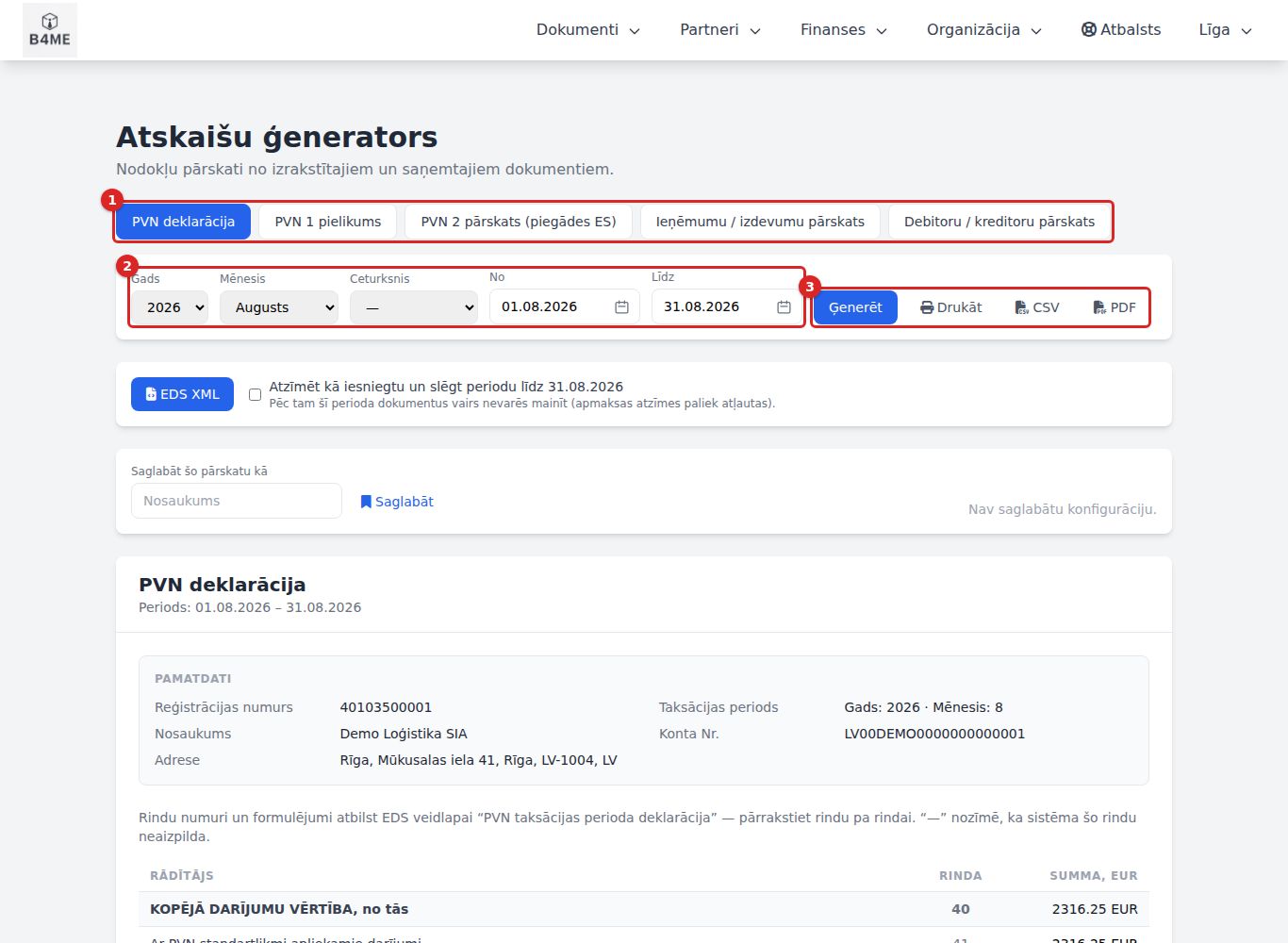
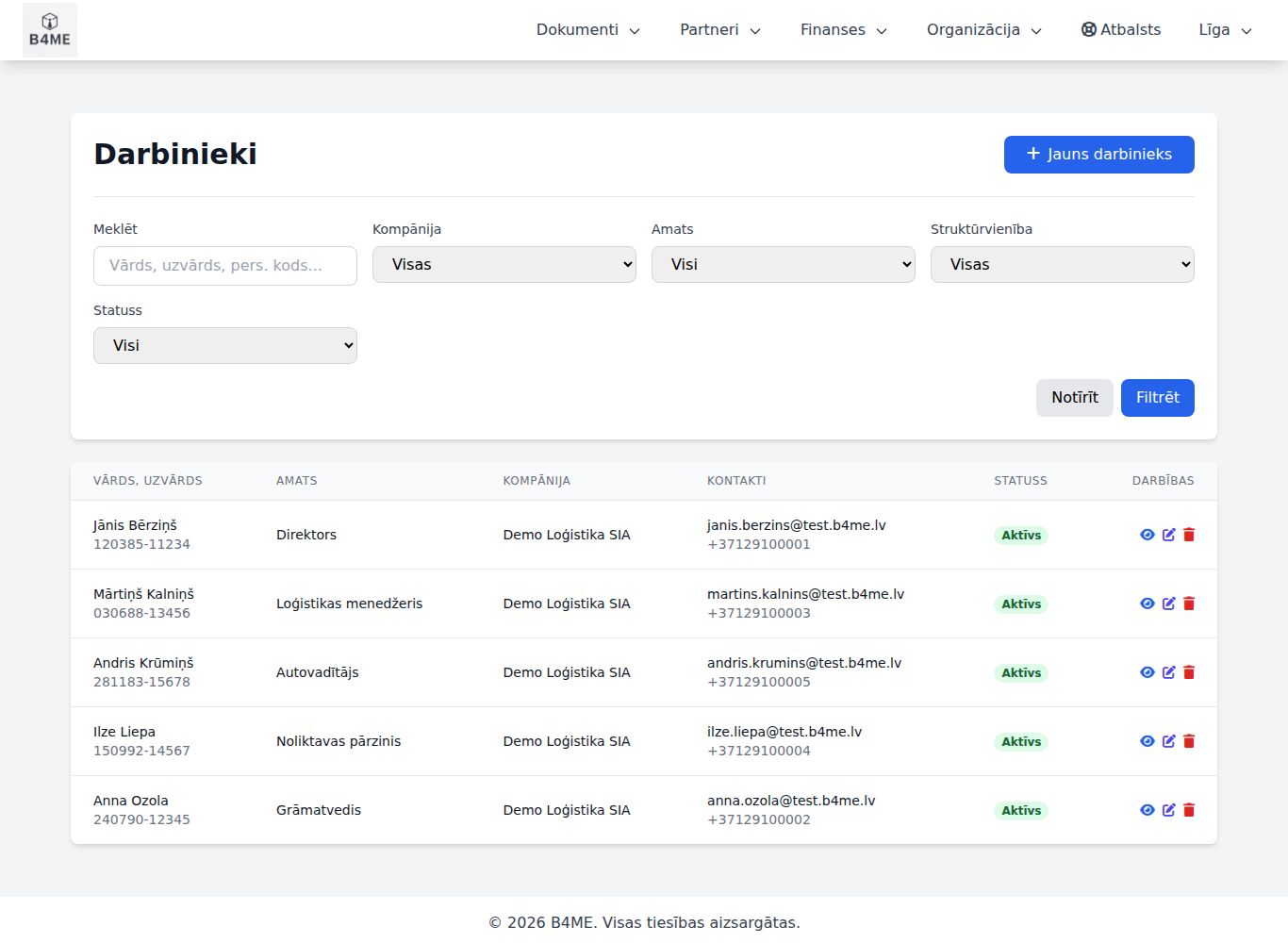
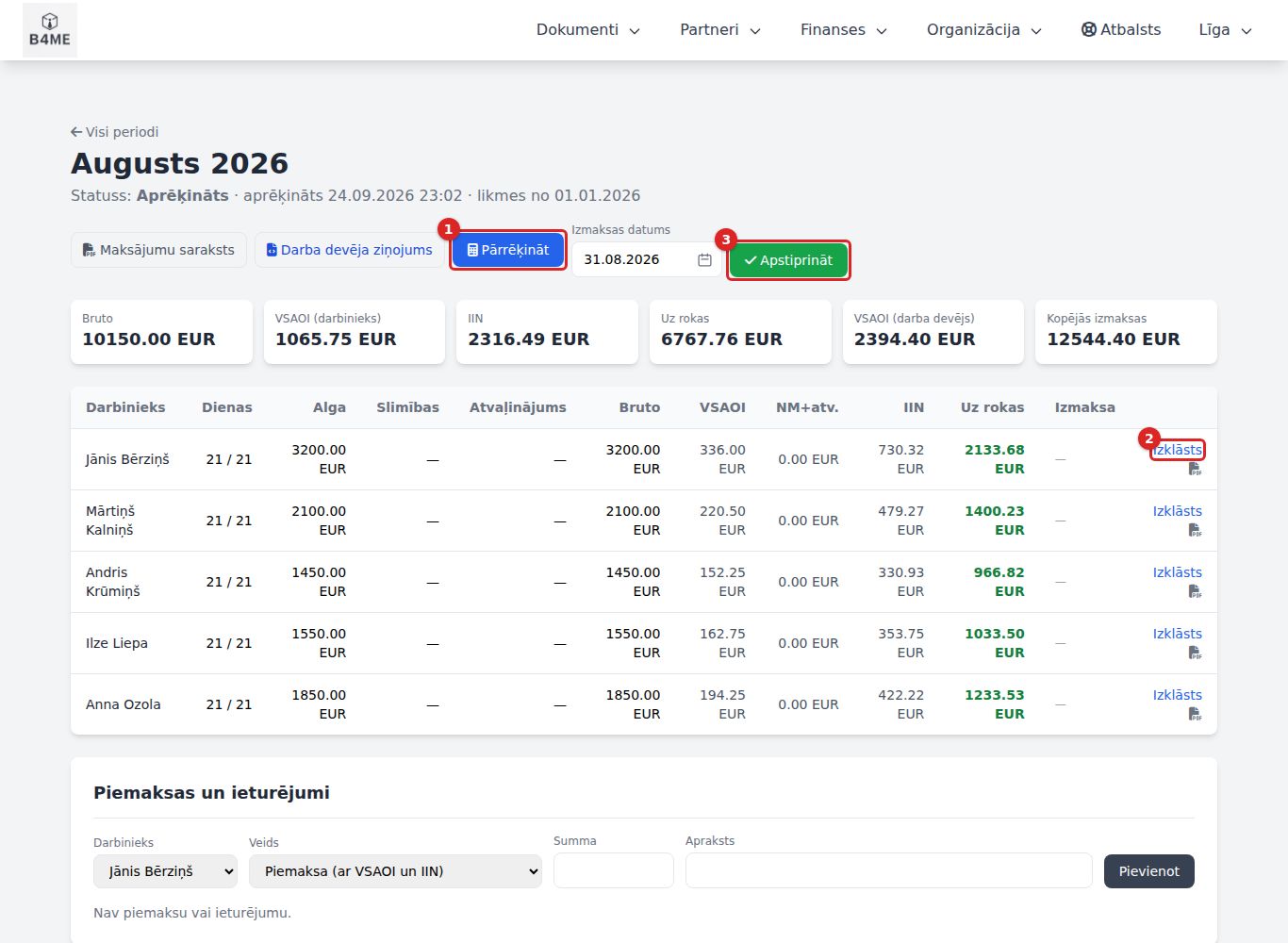
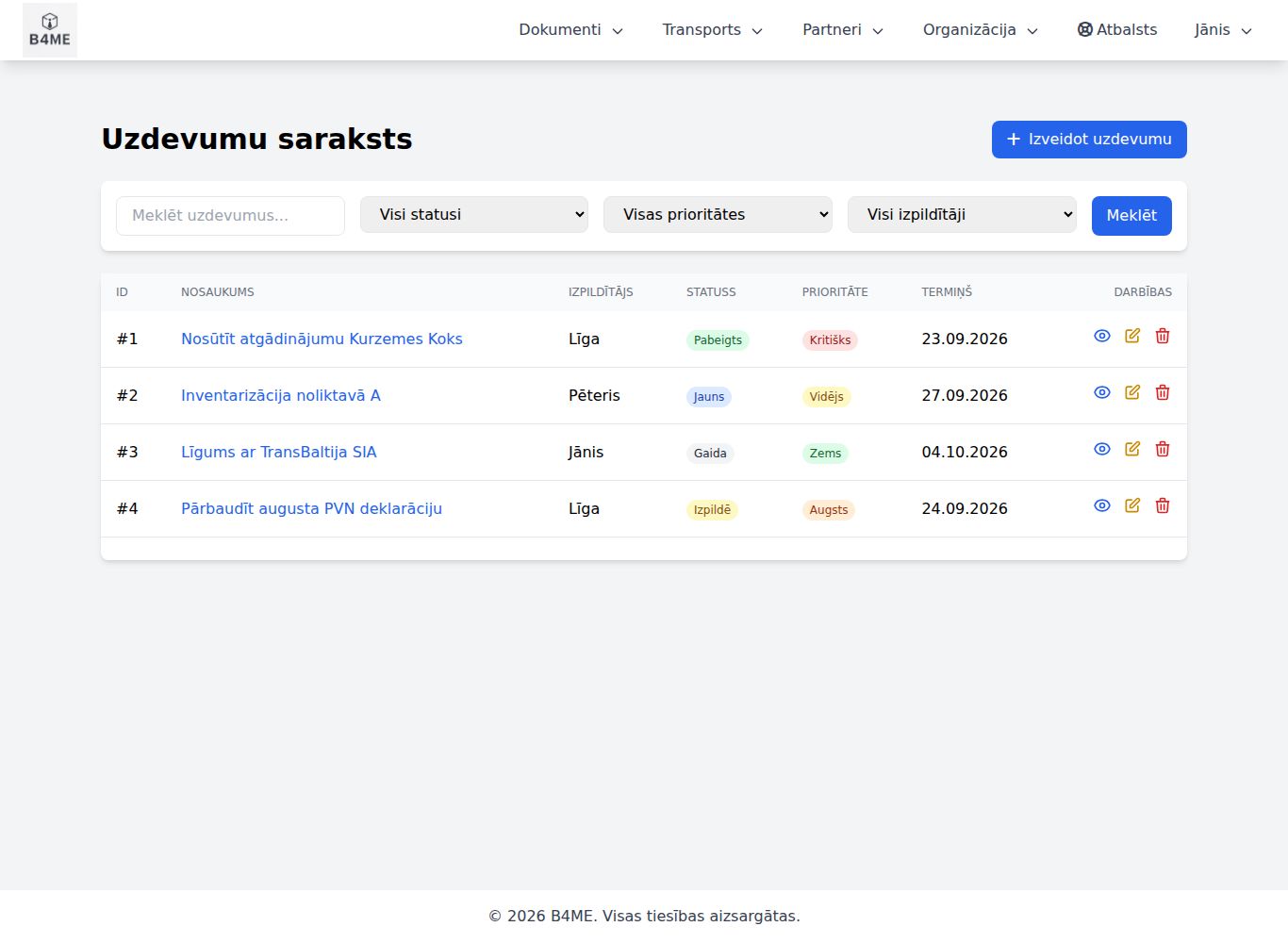
Invoices, bank, accounting, warehouse, transport, payroll — step by step, with screenshots. See how B4ME works day to day, before you sign up.
The system interface and the screenshots are in Latvian. Menu, button and field names in the text are given as they appear on screen, with a translation in brackets on first mention.
/
Finding your way around
B4ME is one system for all of the company's work: partners, orders, invoices, transport, warehouse, bank, accounting, employees. Data is entered once, and from there it flows on automatically — an invoice from an order, a payment from a bank statement, a journal entry from an invoice. How this happens is described in the chapter What comes from where and goes where.
What you do on the pages can also be done with the AI assistant (by voice or text, also in Telegram and the mobile app) — see AI assistant. Other systems — accounting software, a webshop, a bot — connect to B4ME through the API: see API and integrations.
Main menu and user menu
Where things are
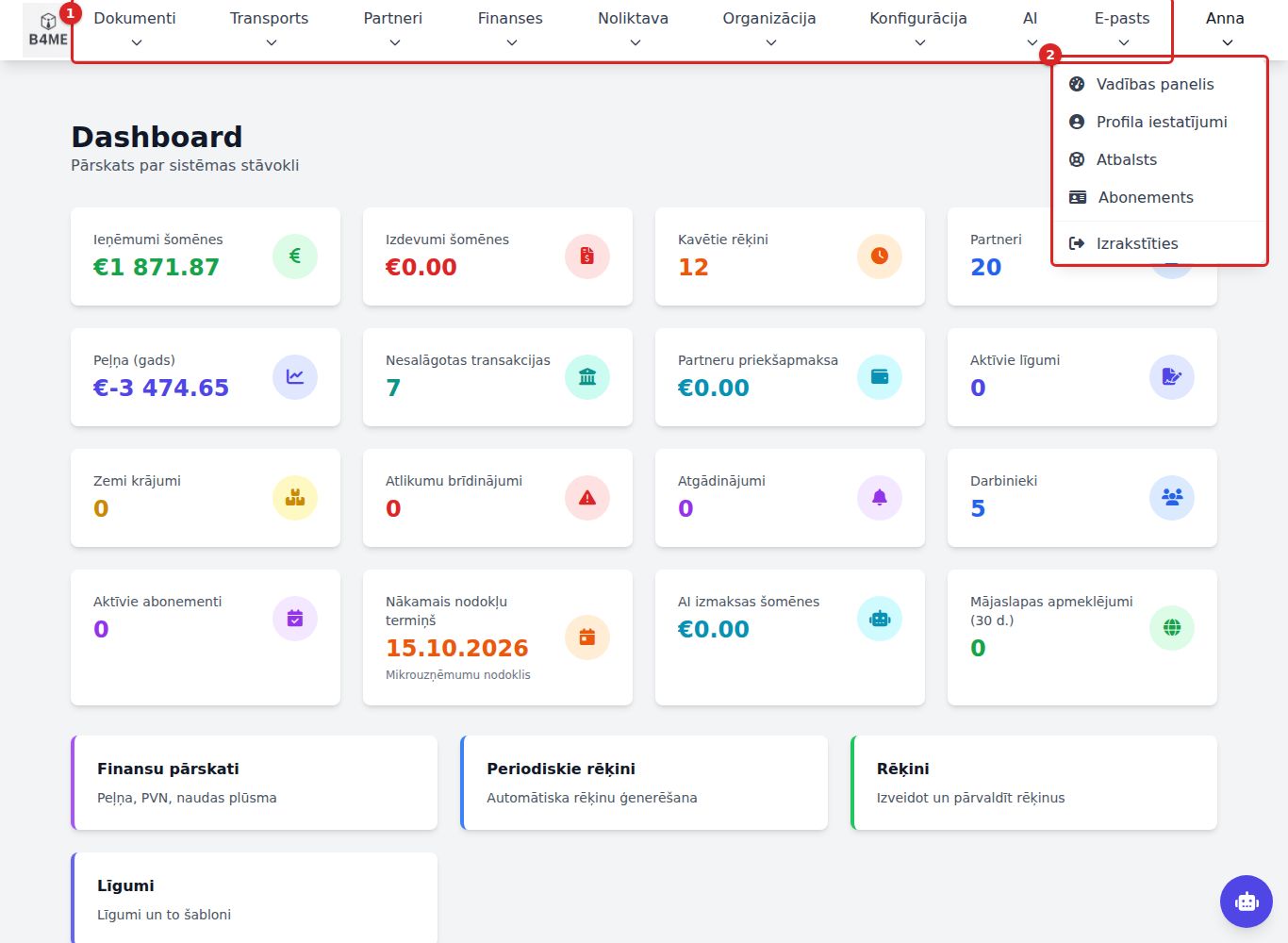
Top bar① — menus by area: Dokumenti (Documents), Transports (Transport), Partneri (Partners), Finanses (Finance), Noliktava (Warehouse), Organizācija (Organisation), Konfigurācija (Configuration), AI, E-pasts (E-mail). A menu opens on mouse hover.
Your name② — the user menu: Vadības panelis (Dashboard), Profila iestatījumi (Profile settings), Atbalsts (Support) (this manual), for the company administrator also Abonements (Subscription), and Izrakstīties (Log out).
On a phone all menus are behind the ☰ button in the top right corner and open with a tap; the user menu is at the end of the list.
AI assistant — the round button in the bottom right corner (if it is available to your company).
Notifications about performed actions appear in the top right corner: green ones (success) disappear after 5 seconds, red, yellow and blue ones — after 30 seconds. Any notification can be closed with ✕.
Why you see exactly what you see
Every screen sits behind a permission. Permissions are granted by roles (for example, "Accountant", "Logistician"). A user can have several roles and is allowed everything that at least one of them allows.
Rows you are not allowed to open are not shown in the menu; empty menus disappear entirely.
If you open a page without permission (for example, from a link), you land on the Vadības panelī (or Profila iestatījumos) with a yellow notification "Jums nav tiesību piekļūt šai lapai." (You do not have permission to access this page.)
On top of that, you see only the sections available to your company (for example, Warehouse, Accounting, Transport, AI assistant, E-mail, Pages).
Permissions changed, but the menu is still the old one? The menu refreshes every 5 minutes — or immediately if you log out and log in again.
Business and companies
One portal (address <jūsu-uzņēmums>.b4me.lv) is one business with its own users and data — other businesses do not see them. If the portal has several companies (legal entities), the active one is chosen in the menu Organizācija → Kompānijas (Organisation → Companies); new documents are built from its details.
Numbering, statuses, closed periods
The system assigns a document its number at the moment of saving, by the format the administrator sets under Konfigurācija → Konfigurācija (Configuration → Configuration) (for example, R-2026-0001). A number is never reused.
Status shows which stage the document is at (draft → issued → paid…). Each section's chapter has its status table.
When the accountant closes a period, its documents (invoices, incoming documents, journal entries, salaries) can no longer be edited — saving gives an error about a closed period. Payments for them can still be registered.
Who sees what you do
Every creation, edit and deletion is recorded in the audit log (who, when, from where, which fields changed).
Logging in and the dashboard
Logging in
Log in at your company's address https://<uzņēmums>.b4me.lv/login: E-pasta adrese (E-mail address), Parole (Password), optionally Atcerēties mani (Remember me), button Pieslēgties (Log in).
After logging in you land on the page you were trying to open, or on the Vadības panelī (Dashboard). If you have no permission for the dashboard — on Profila iestatījumos (Profile settings).
A link to a system page opened without logging in shows "lapa nav atrasta" (page not found) (404) — log in via /login first.
After several wrong attempts you have to wait briefly (no more than 5 attempts per minute for one e-mail address). The account is not locked.
The session ends after 2 hours of inactivity and in any case 12 hours after logging in — then you must log in again.
Log out: your name → Izrakstīties (Log out).
Second factor
If you have enabled two-factor authentication in your profile, after the password:
with the B4ME mobile app — the page "Apstipriniet pieteikšanos" (Confirm the login) shows a code; make sure the phone shows the same code, and confirm. The request is valid for 120 seconds; if you missed it — Nosūtīt pieprasījumu vēlreiz (Send the request again);
with an authenticator app — enter the 6 digits in the field Kods no autentifikatora lietotnes (Code from the authenticator app) and Pieteikties ar kodu (Log in with code);
phone not available — Nav pieejams telefons? Ievadīt rezerves kodu (Phone not available? Enter a backup code) → a code in the form XXXX-XXXX → Pieteikties ar rezerves kodu (Log in with backup code). Each backup code works once.
Forgotten password
On the login page Aizmirsāt paroli? (Forgot your password?) → enter E-pasts (E-mail) → Nosūtīt saiti (Send link). The e-mail contains a link valid for 60 minutes. The new password must be at least 12 characters long and must not appear in public data breaches (a long phrase is better than a short complex password). After changing the password you must log in again in the mobile app.
The password cannot be changed in the profile. Even if you remember your password, use Aizmirsāt paroli?
Dashboard
Opens with your name → Vadības panelis.
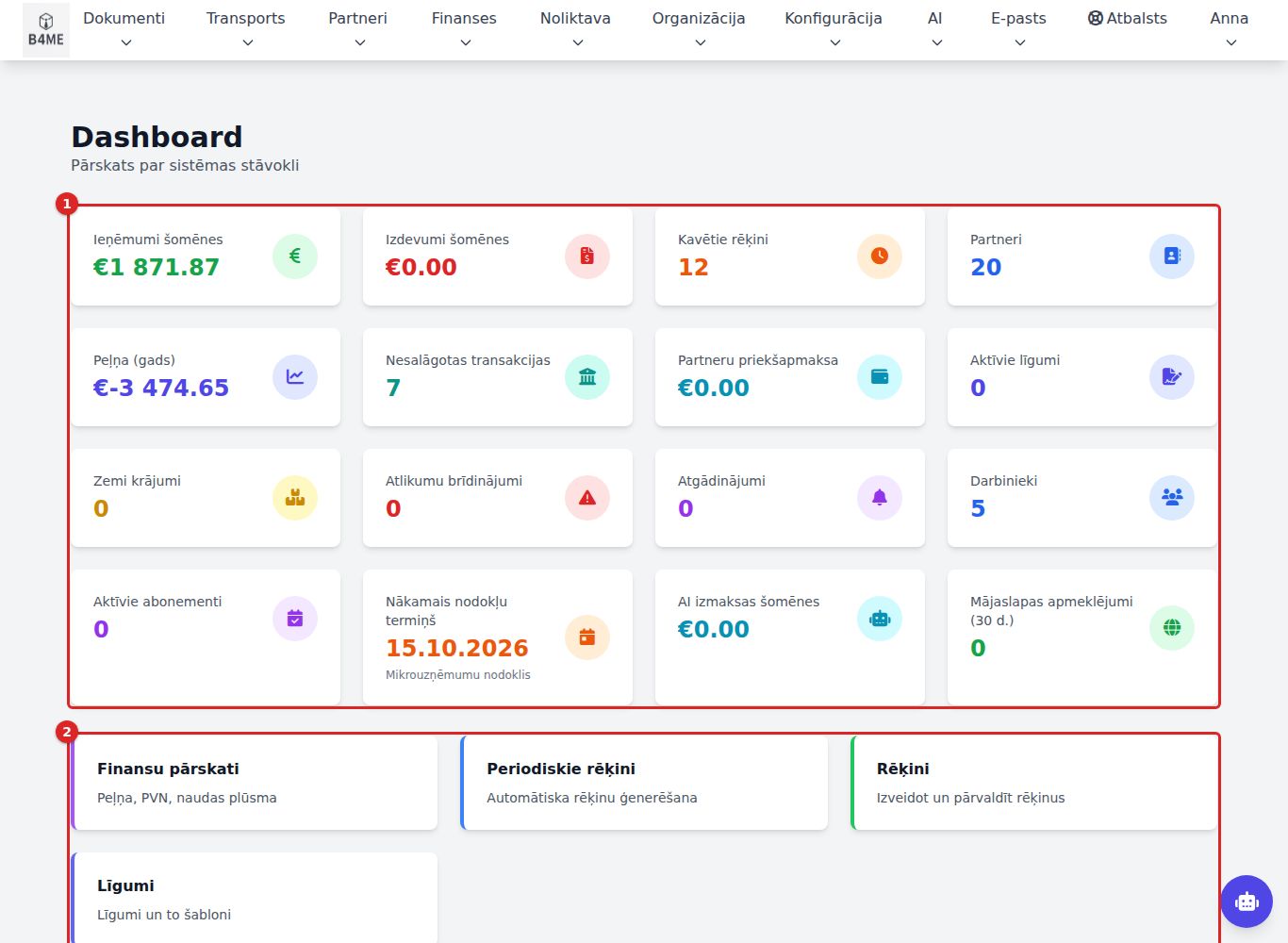
Dashboard
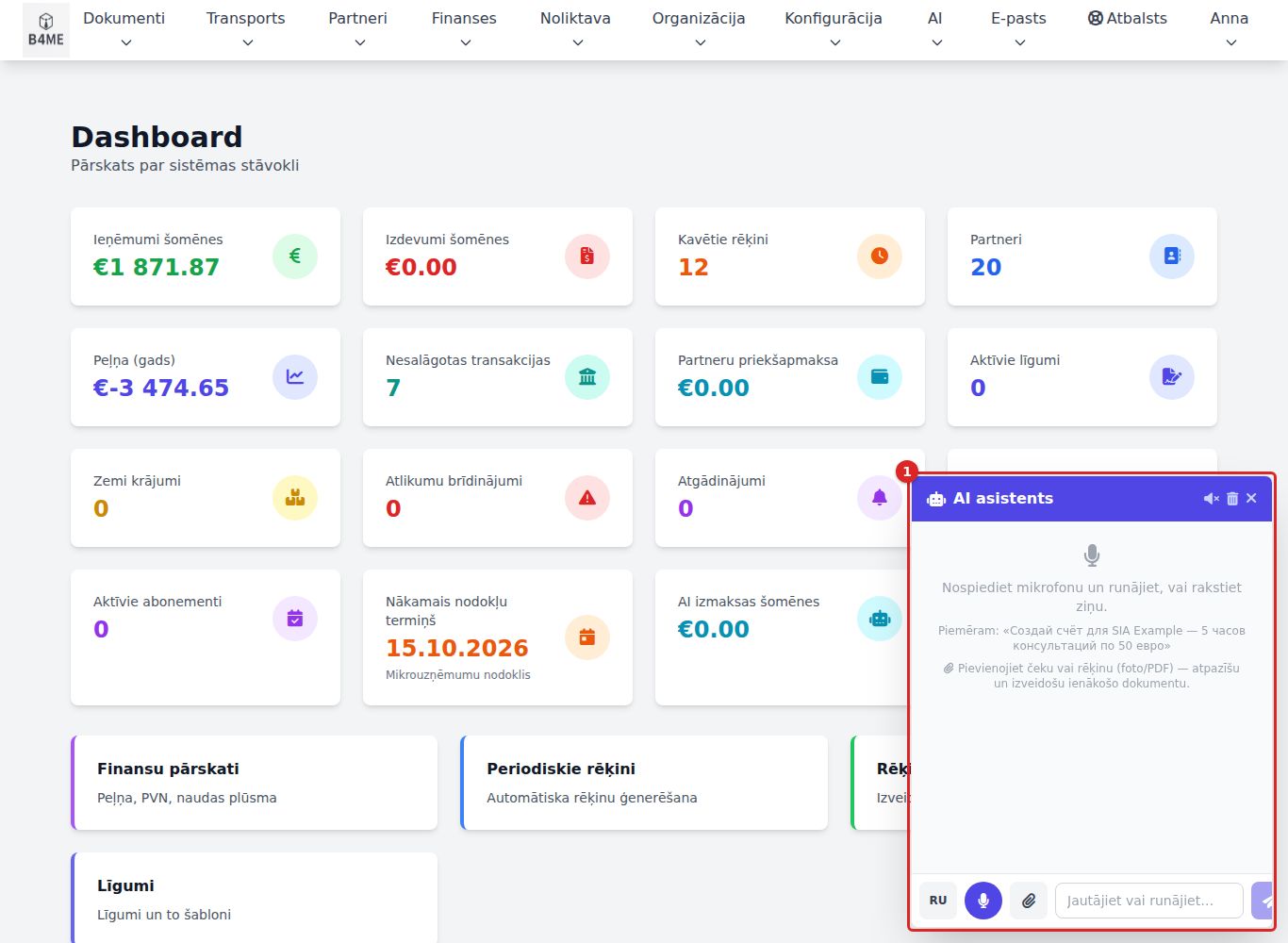
Indicator cards① — each is shown only if you have permission to open the page it leads to; clicking a card opens that page. For example: Ieņēmumi šomēnes (Income this month), Izdevumi šomēnes (Expenses this month), Kavētie rēķini (Overdue invoices), Nesalāgotas transakcijas (Unmatched transactions), Aktīvie līgumi (Active contracts) ("N beidzas 30 dienās" — N expire within 30 days), Zemi krājumi (Low stock), Darbinieki (Employees) ("N prombūtnē šodien" — N absent today), Nākamais nodokļu termiņš (Next tax deadline), Apgrozījums (PVN slieksnis) (Turnover (VAT threshold)).
Ātrās saites (Quick links) ② — the most frequently used sections.
Jaunākie rēķini (Latest invoices) — the last 5 created; the number opens the invoice.
Gaidāmie atgādinājumi (Upcoming reminders) — the nearest 5.
The figures are calculated when the page is opened. To see the latest ones, reload the page.
Warning bar
If the system finds documents that need attention, a red tab appears below the menu (for example, "PVN numurs nav derīgs" (VAT number is not valid) with a count). Clicking it opens a list with links to the documents. Once the problem is fixed, Apstrādāts — aizvērt (Handled — close) closes the tab; if the problem recurs, the tab appears again.
Partners
A partner is any company or person you work with: a customer, a supplier, a carrier. The partner's details from the card automatically go into invoices, orders and contracts, and by partner name and account the payments in the bank statement are matched with invoices.
Partner list
Partneri → Visi partneri (Partners → All partners).
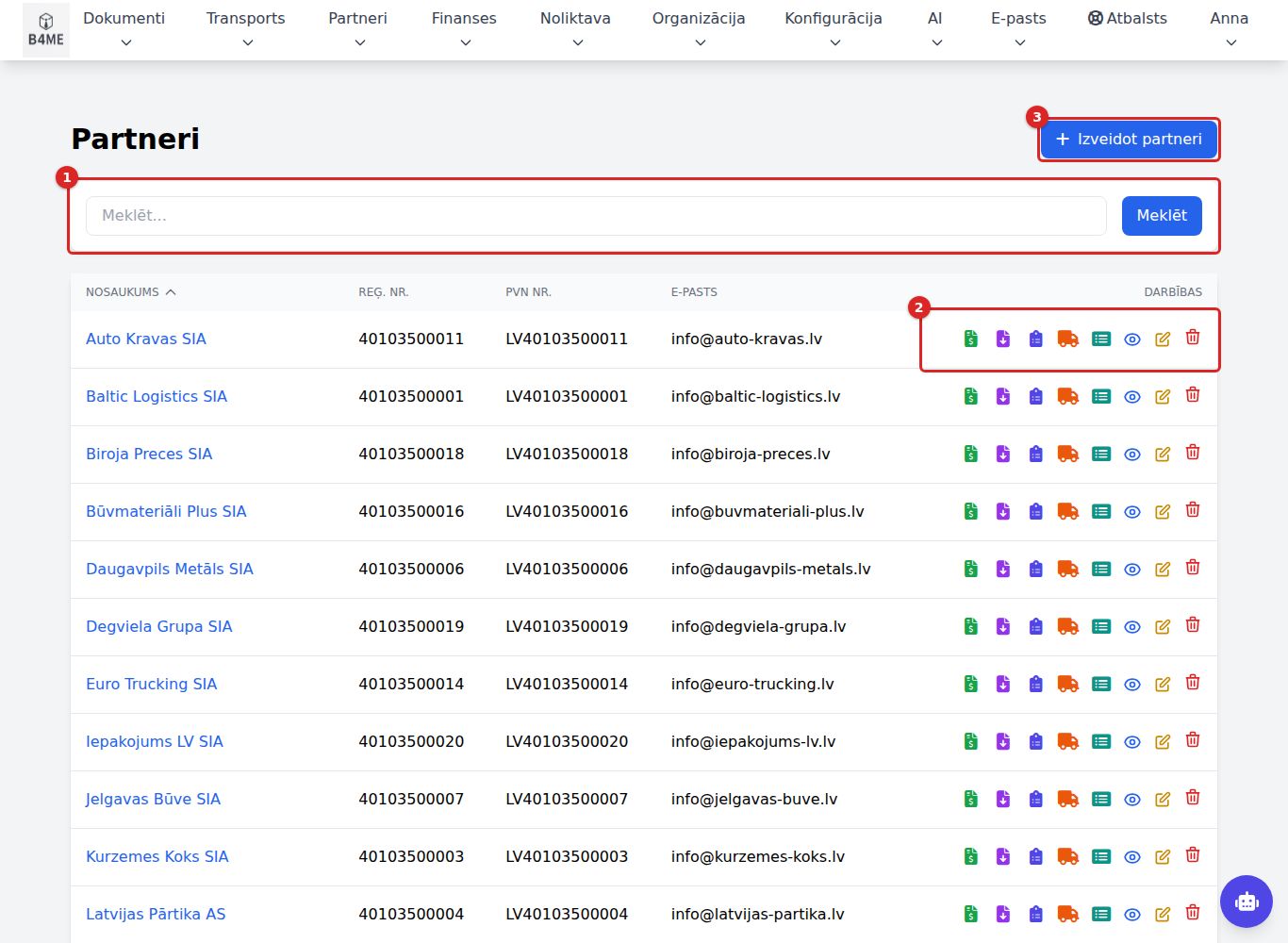
Partner list
Search ① by name or registration number.
Columns: Nosaukums (Name), Reģ. Nr. (Reg. No.), PVN Nr. (VAT No.), E-pasts (E-mail).
Row icons ② — quickly create for the partner an invoice, an incoming document, an order, a transport order, a manifest (those you have permission for are shown), as well as Skatīt (View), Rediģēt (Edit), Dzēst (Delete).
Izveidot partneri (Create partner) ③.
The AI assistant finds a partner by name or registration number, even if you only roughly remember the name: "Find partner Piemērs". See AI assistant.
New partner
Partneri → Jauns partneris (Partners → New partner) (or Izveidot partneri).
Pamatinformācija (Basic information): Vārds / Nosaukums (Name / Company name) (without the legal form — "Piemērs", not "SIA Piemērs"), Juridiskā forma (Legal form) (SIA, AS, IK… or Fiziska persona (Natural person)), Reģistrācijas numurs (Registration number), Dokumentu valoda (Document language) (the language in which to print the invoice PDF for this partner), PVN maksātājs (VAT payer).
Partnera tipi (Partner types) — for example, customer, carrier, supplier. Ticking a type adds its additional sections to the form.
Kontaktinformācija (Contact information): address, E-pasts (invoices are sent to it), Tālrunis (Phone), PVN numurs (VAT number) (with country code, for example LV40003123456), E-adrese (E-address) (for e-invoices), Nosaukumi bankas izrakstā (Names in the bank statement) — if the partner appears in the bank under a different name, enter it here (one per line) so that payments are recognised.
Papildu kontakti (Additional contacts) (Pievienot kontaktu (Add contact)) and Bankas rekvizīti (Bank details) (Pievienot banku (Add bank); the first account is the main one).
Izveidot partneri.
If the registration number already belongs to another partner, "Šis reģistrācijas numurs jau tiek izmantots." (This registration number is already in use.) appears — find the existing partner in the list.
Partner card
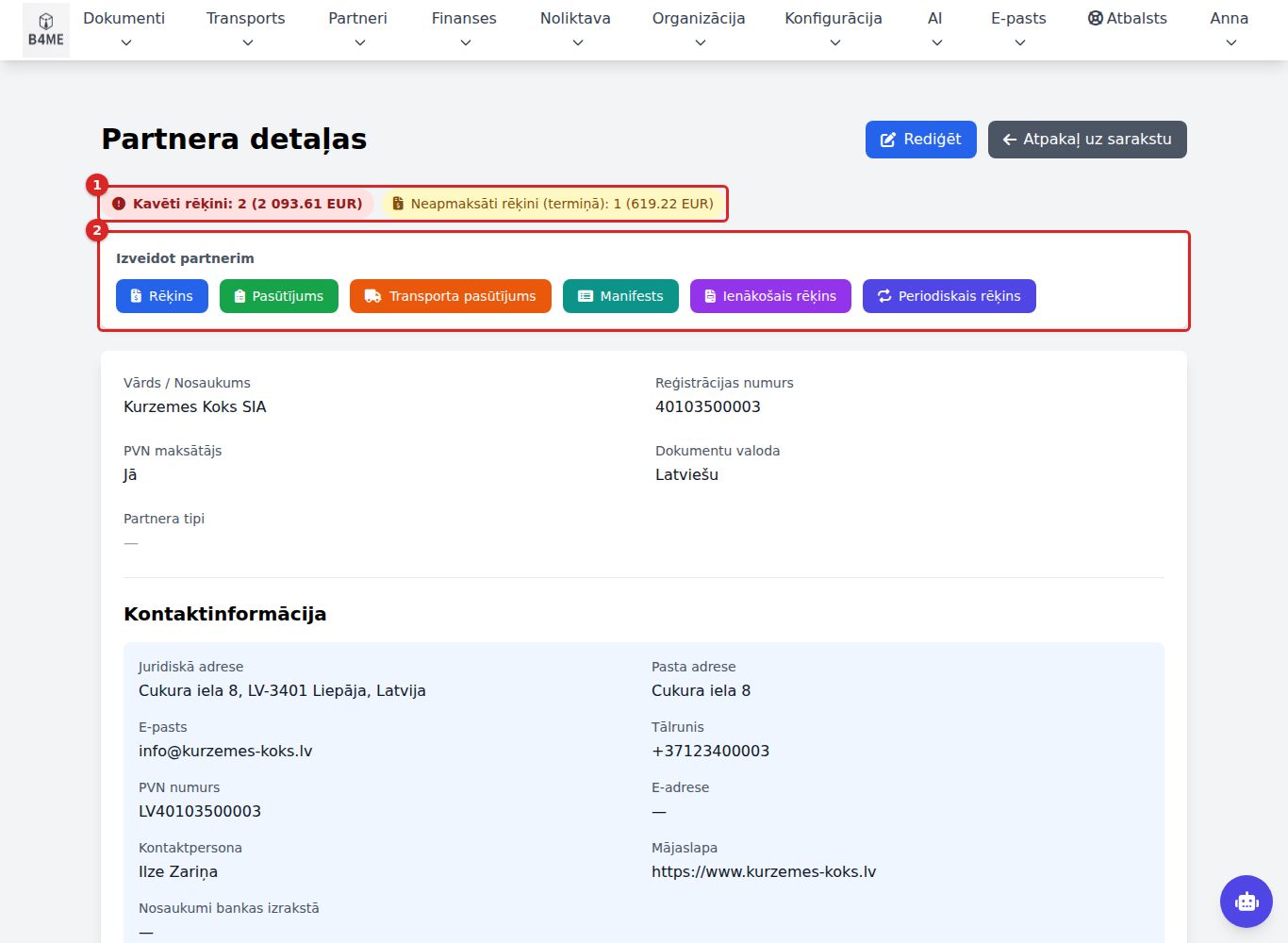
Partner card
At the top — Kavēti rēķini (Overdue invoices) / Neapmaksāti rēķini (termiņā) (Unpaid invoices (within term)) with amounts ①; clicking opens these invoices.
Izveidot partnerim (Create for partner) ② — buttons Rēķins (Invoice), Pasūtījums (Order), Transporta pasūtījums (Transport order), Manifests (Manifest), Ienākošais rēķins (Incoming invoice), Periodiskais rēķins (Recurring invoice): the new document will already be filled in with this partner's data.
PVN numura pārbaude (VIES) (VAT number check (VIES)) — for EU partners; Pārbaudīt tagad (Check now) checks the VAT number in the EU register (edit permission required). The result is saved in the card.
Bilance (Balance) — the partner's prepayment (green) or debt (red); Bilances vēsture (Balance history).
Abonementi (Subscriptions) and Periodiskie rēķini (Recurring invoices) — what is invoiced to this partner automatically.
Partner type templates
Konfigurācija → Partneru tipu šabloni (Configuration → Partner type templates) defines which partner types exist and which additional sections and fields they have (for example, for a carrier — vehicles, licence). + Izveidot jaunu tipu (+ Create new type) → Tipa nosaukums (Type name), Sadaļas (Sections) with parameters → Izveidot šablonu (Create template). Do not delete a type that is already assigned to partners — Deaktivizēt (Deactivate). Renaming a section or field renames it for all existing partners too.
Deleting a partner is irreversible. If you no longer work with a partner, better not delete it — its details remain in the historical documents.
Objects
Objekti (Objects) — customers' vehicles, real estate, equipment and other objects that work is done on. Every object has an owner (partner) and a work history — all orders created for it.
Object list
Partneri → Visi objekti (Partners → All objects). Filters: type (Transportlīdzeklis — vehicle, Nekustamais īpašums — real estate, Iekārta — equipment, Cits objekts — other) and status. Search finds an object by its number — registration plate, VIN, cadastral or serial number (spaces, dashes and letter case don't matter: "ab 1234" finds "AB-1234") —, address, name, make, model or owner name.
The partner card has an Objekti block with that partner's objects.
The object card shows Darbu vēsture (Work history: every order for the object with mileage or engine hours, responsible employee and amount), Rēķini (Invoices: an invoice issued from an order gets the object by itself, otherwise add it in the invoice card's Objekti block) and Kartītes izmaiņas (Card changes: who changed the owner or the data, and when). When an object changes hands, change its Īpašnieks (Owner): the history stays with the object.
New object
Partneri → Jauns objekts (Partners → New object) or, in the partner card, Izveidot partnerim → Objekts (Create for partner → Object). The fields depend on Tips (Type): a vehicle has Valsts numurs (registration plate), VIN, make, model, engine and Nobraukums (mileage); real estate has Kadastra numurs (cadastral number), address, kind and area; equipment has Sērijas numurs (serial number), Inventāra numurs (inventory number), manufacturer and Motorstundas (engine hours). At least a number, a name or an address is required. A VIN can belong to one car only.
Object in an order
In the order form, Klients (Customer) — start typing the name and pick: the customer's details fill in the empty fields. Atbildīgais darbinieks (Responsible employee) — who does the work (optional; defaults to the employee linked to your user). Who created the order is shown in the list (Izveidoja — Created by) and in the card; the PDF does not show it.
In a template field of type Objekts, start typing a number, an address or the owner's name and pick the object: the object's fields and the customer's details are filled in (empty fields only), and if no customer is set, the owner becomes the customer. Below the field you see Saistīts ar objekta kartīti (Linked to the object card). In the object card, Jauns pasūtījums šim objektam (New order for this object) opens the form with the object already picked.
The Nobraukums (for equipment, Motorstundas) entered becomes the object's last known reading after saving — only if it is higher than the previous one.
Orders and pre-orders
An order is a customer order card with freely composed sections (based on an order template) and its own PDF. A pre-order is a quick quote for goods or services with line items and amounts, from which an order or an invoice is created with one click.
Pre-order (quote)
→
Order
→
Invoice — the order becomes "Completed"
Order list
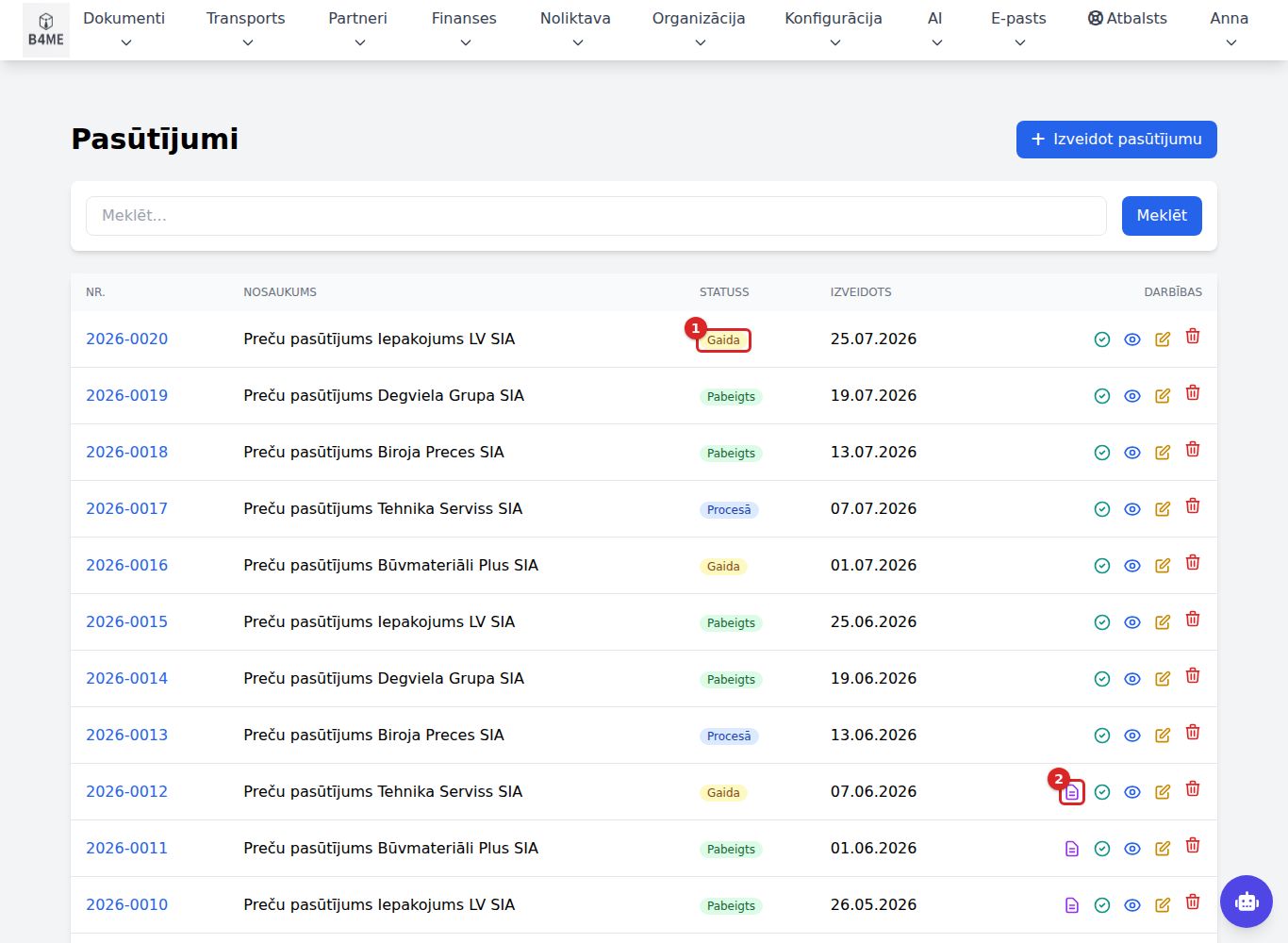
Dokumenti → Visi pasūtījumi (Documents → All orders): Nr. (No.), Nosaukums (Name), Statuss (Status), Izveidots (Created).
Order list
The status is changed by clicking the status badge ① in the list (edit permission required): the company's status menu opens. Above the list the status can be filtered — by a specific status or a group (e.g. Visi nepabeigtie — all unfinished).
Every status belongs to one of four groups:
Group
When
Jauns / gaida (New / pending)
new order (the status marked Jauniem pasūtījumiem — for new orders)
Procesā (In progress)
work started (set by a person)
Pabeigts (Completed)
set by a person or automatically when an invoice is issued from the order
Atcelts (Cancelled)
set by a person; for a cancelled order an invoice does not change the status
The icon "Skatīt saistītos rēķinus" (View related invoices) ② shows the invoices issued from this order.
New order
Dokumenti → Jauns pasūtījums (Documents → New order):
Pasūtījuma nosaukums (Order name).
Pasūtījuma numurs (Order number) — leave it empty, the system will assign it.
Pasūtījuma šablons (Order template) — defines the sections, fields and PDF layout (cannot be changed later).
Klients (Customer) — start typing the name and pick; the customer's details fill in the empty fields. Atbildīgais darbinieks (Responsible employee) — optional. Pozīcijas (Positions, optional) — work and parts with quantity, price and VAT: they set the order amount and go into the invoice; without them the amount comes from the template fields Summa bez PVN / Summa ar PVN. As you start typing the description, the system offers services from the catalogue and products from the warehouse — picking one fills in the name, unit, price and VAT.
Fill in the template fields; for your own notes — Pievienot sadaļu (Add section) / Pievienot parametru un saturu (Add parameter and content).
Izveidot Pasūtījumu (Create order).
Order card
Buttons: Skatīt PDF (View PDF), Lejupielādēt PDF (Download PDF), Izveidot rēķinu (Create invoice) (opens a new invoice with the partner and line items from the order), Manifests (Manifest), Rediģēt (Edit). The block Saistītie dokumenti (Related documents) shows invoices and manifests. An existing invoice is linked on the edit page with Saistīt ar Rēķiniem (Link to invoices).
Pre-orders
Dokumenti → Visi priekšpasūtījumi / Jauns priekšpasūtījums (Documents → All pre-orders / New pre-order).
Nosaukums, Apraksts (Description), Partnera nosaukums (Partner name) (start typing — the system will suggest partners).
Line items: Apraksts, Daudz. (Qty), Cena (Price), Atl. % (Disc. %), PVN % (VAT %) → Pievienot pozīciju (Add line item). Or in the card No noliktavas (From warehouse) → tick the products → Pievienot atzīmētās (Add selected) (quantity 1, editable afterwards; the warehouse stock balance does not change).
Saglabāt (Save). The number is DR-gads-NNNN.
In the pre-order card:
Uz pasūtījumu (To order) — creates an order with the same line items and amounts;
Izveidot rēķinu — creates an invoice immediately (a partner must be selected). The invoice date is today.
Status
Meaning
Jauns (New)
can be edited, converted, invoiced
Pārnests uz pasūtījumu (Converted to order)
an order has been created — no longer editable
Rēķins izveidots (Invoice created)
an invoice has been created — no longer editable
Every action is recorded in the block Darbību vēsture (Action history).
The AI assistant can create and edit a pre-order and issue an invoice from it: "Create a pre-order for SIA Piemērs: 3 chairs at 40 euros", "Issue an invoice from pre-order DR-2026-0012". See AI assistant.
Order templates
Konfigurācija → Pasūtījumu šabloni (Configuration → Order templates) defines which sections and fields an order has and which PDF template is used for it. + Izveidot jaunu šablonu (+ Create new template): Nosaukums, Šablona tips (Template type), Saistītais PDF šablons (Linked PDF template), sections with fields (text, number, currency, date, choice, formula, database lookup). Iestatīt kā noklusējuma (Set as default) — this template will be offered for a new order. System templates cannot be changed — Skatīt / kopēt (View / copy) and save as your own.
Pasūtījumu statusi
Konfigurācija → Pasūtījumu statusi (order statuses) — the company's status list. It starts with four system statuses (Gaida, Procesā, Pabeigts, Atcelts): they can be renamed and recoloured but not deleted — automation sets them. Jauns statuss (new status): Nosaukums (name), Grupa (group), Krāsa (colour), Kārtība (order), Jauniem pasūtījumiem (for new orders). A status already used by orders cannot be deleted — untick Aktīvs: it disappears from the menu but the orders keep it. For a car service, the Iestatīt button applies the car-service statuses (see Car service).
Public link for the customer
In the order card, Izveidot publisko saiti (Create public link) — the customer opens the link without logging in and sees the order PDF (and can download it). Kopēt (Copy) copies the link; you see until when it is valid (45 days) and how many times it was opened. The PDF shows the order as it was when the link was created: if the order changes, press Jauna saite (New link; the old one stops working). Atsaukt (Revoke) — the link no longer opens.
Payment by order
When a customer pays by transfer with the order number in the payment purpose, bank matching finds the order. If the order already has an invoice, the payment is registered on it. If there is no invoice yet and Rēķinu iestatījumi (Invoice settings) has Automātiski izrakstīt rēķinu, kad pasūtījums apmaksāts (Issue an invoice automatically when an order is paid) switched on, an invoice dated by the payment is issued (a regular one for finished work, a prepayment one otherwise) and the payment is registered — only if the payer is the order's customer and the amount equals the order amount. Otherwise the payment stays in the bank for review, pointing to the order. A paid order shows Apmaksāts (Paid) in its card.
Products from the warehouse
A position picked from the warehouse (label noliktava) is written off when the order becomes "Pabeigts" (Completed) — the system creates an issue document (its number is shown in the card) and takes the product from unplaced stock first, then from the shelves. If there is not enough stock, the order cannot be completed — you see what is missing. If a completed order is reopened or cancelled, the document is cancelled and the product returns to stock; if the products of a completed order change, the document is created anew. An invoice does not change warehouse stock.
Car service
Autoserviss (Car service) is for car services: a work order template, car service statuses and the printout. Customers' cars are kept as objects, so every car has its own work and invoice history.
Car service order
Autoservisa pasūtījums (Car service order) — a template with a Transportlīdzeklis field, mechanic, advertising source, deadlines, work, spare parts and payment; printed as Autoservisa darba uzdevums (Car service work order) with both parties' signatures. The car service statuses (Jauns, Diagnostika, Darbā, Saskaņošanā, Gaida rezerves daļas, Piegāde, Gatavs, Slēgts, Atteikums) are set with one button in Pasūtījumu statusi (Order statuses).
Example: from the phone call to a paid invoice
The customer calls or drives in.Dokumenti → Jauns pasūtījums (Documents → New order), template Autoservisa pasūtījums (Car service order). In the Transportlīdzeklis (Vehicle) field type the plate (ab1234 works) — if the car has been here before, its details and the customer fill in; if not, create the object (Partneri → Jauns objekts (Partners → New object)). Enter Nobraukums (Mileage) and the fault description, pick Atbildīgais darbinieks (Responsible employee), status Diagnostika (Diagnostics).
Estimate.Pozīcijas (Positions): start typing the description and pick work from the services catalogue (price and VAT fill in) and parts from the warehouse (label noliktava). The total adds up by itself.
Agreeing with the customer. In the card, Izveidot publisko saiti (Create public link) → Kopēt (Copy) and send it to the customer: they see the estimate PDF without logging in. If the estimate changes — Jauna saite (New link). Status Saskaņošanā (Awaiting approval), after approval Darbā (In progress).
Work done. Status Slēgts (Closed) — or your status in the Pabeigts (Completed) group — writes the parts off from the warehouse. If a part is short, the system says so and does not close the order.
Payment by bank transfer. The customer pays with the order number in the payment reference. After the bank statement import or bank sync the system finds the order and — if Rēķinu iestatījumi (Invoice settings) has Automātiski izrakstīt rēķinu, kad pasūtījums apmaksāts (Issue an invoice automatically when an order is paid) on — issues the invoice dated by the payment and marks it paid. The order card shows Apmaksāts (Paid).
If something does not match (a partial payment, or someone else paid): the payment stays Gaida apstiprinājumu (Awaiting confirmation), and in the transaction cardIzrakstīt rēķinu no pasūtījuma (Issue an invoice from the order) issues the invoice dated by the payment and registers the amount paid.
History. The object card shows Darbu vēsture (Work history) and Rēķini (Invoices): everything about this car in one place.
If the invoice is needed right away (for example, a company paying later) — Izveidot rēķinu (Create invoice) in the order card: customer, positions and object fill in, and a payment with the invoice number is matched automatically.
The same can be done with the AI assistant — "Open an order for car AB-1234: oil change from the catalogue and 5 l of oil from the warehouse", "Close the order" — and from other systems through the API.
Invoices
Outgoing invoices to customers. An invoice is created from scratch or from an order, a pre-order, a transport order, a recurring invoice or a subscription. Once issued, it automatically reaches accounting, VAT reports and bank payment matching.
Invoice issued — "Unpaid"
→
PDF / e-mail / XML to the customer
→
Payment from the bank or by hand
→
Paid
List
Dokumenti → Visi rēķini (Documents → All invoices).
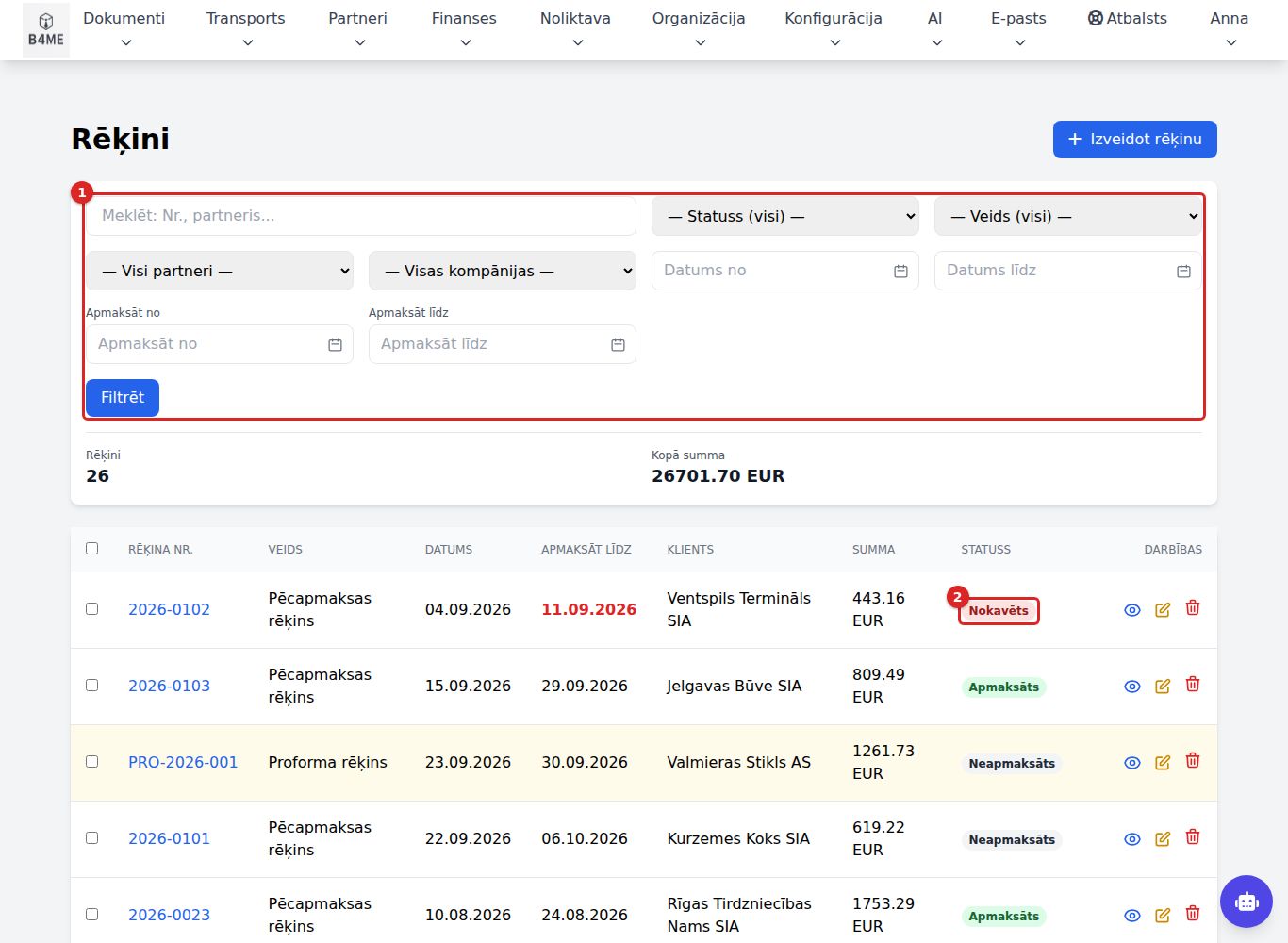
Invoice list
Filtri (Filters) ①: search (No., partner), status (also Nokavēts (Overdue)), type, partner, company, invoice date and due date from–to → Filtrēt (Filter). Below the filters — the number of selected invoices and Kopā summa (Total amount).
Statuss (Status) ② — a click toggles Apmaksāts (Paid) ↔ Neapmaksāts (Unpaid) (permission to mark payment required). When marked as paid, the remaining balance is registered as a payment "Atzīmēts kā apmaksāts" (Marked as paid).
The row colour shows the type: grey — draft, amber — proforma, pink — credit note, blue — prepayment, light blue — advance, orange — contractual penalty. An ordinary post-payment invoice is white.
Export
Tick the rows (or select with filters), choose the format XLS / CSV / DEKRA and Eksportēt atzīmētos (Export selected) or Eksportēt visu atlasi (N) (Export the whole selection (N)). Each invoice is one row.
New invoice
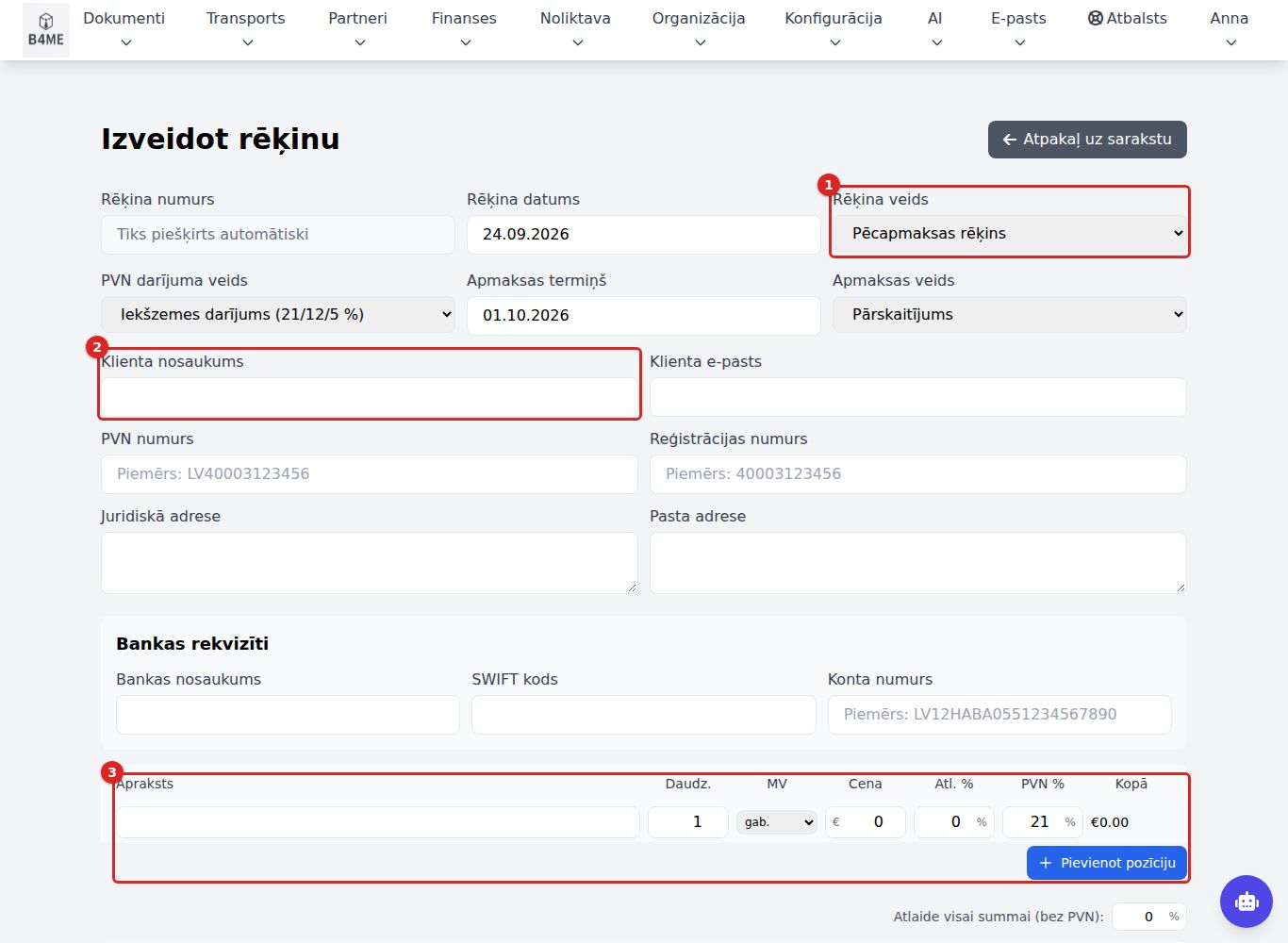
Dokumenti → Jauns rēķins (Documents → New invoice) (or Izveidot rēķinu (Create invoice) in an order or in the partner card — then the partner and line items are already filled in).
New invoice
Rēķina datums (Invoice date), Rēķina veids (Invoice type) ①, Apmaksas termiņš (Due date), Apmaksas veids (Payment method). The system assigns the number on saving.
Klienta nosaukums (Customer name) ② — start typing and select the partner; the details, VAT number and bank account are filled in. If no such partner exists, it will be created from the entered data.
PVN darījuma veids (VAT transaction type) — usually Iekšzemes darījums (Domestic transaction). For an EU VAT payer the system sets Piegāde ES reģistrētam maksātājam (0 %) (Supply to an EU-registered VAT payer (0 %)) — then PVN 2 pazīme (VAT 2 indicator) must also be selected. If a warning about the VAT number appears — Pārbaudīt VIES (Check VIES).
Pozīcijas (Line items) ③: Apraksts (Description), Daudz. (Qty), Cena (Price), Atl. % (Disc. %), PVN % (VAT %) (0, 5, 12 or 21) → Pievienot pozīciju (Add line item). As you start typing the description you can pick a service from the catalogue or a product from the warehouse — price and VAT fill in. If needed — Atlaide visai summai (Discount on the whole amount).
Komentārs (Comment) (visible in the PDF) and Piezīmes (Notes) (for you only). A new invoice (also from the partner card) already starts the comment with Pakalpojuma sniegšanas datums: (Date of supply) in the buyer's document language (partner card Dokumentu valoda (Document language): English Date of supply:, Russian Дата оказания услуги:) — you only add the date. The texts are changed in Rēķinu iestatījumi (Invoice settings) → Komentārs jaunam rēķinam (Comment for a new invoice).
If you use e-mail — Nosūtīt rēķinu klientam uz e-pastu (Send the invoice to the customer by e-mail) (PDF and e-invoice XML to the partner's e-mail).
Most common errors: "Apmaksas termiņš nevar būt pirms rēķina datuma." (The due date cannot be before the invoice date.); "PVN likme var būt 0, 5, 12 vai 21 %." (The VAT rate can be 0, 5, 12 or 21 %.); the quantity must be at least 1.
The AI assistant fills in the invoice form from what you say and opens it for review, finds invoices and sends an already created invoice to the client: "Create an invoice for SIA Piemērs for 5 hours of consulting at 50 euros", "Which invoices are overdue?", "Send the latest SIA Piemērs invoice to the client". See AI assistant.
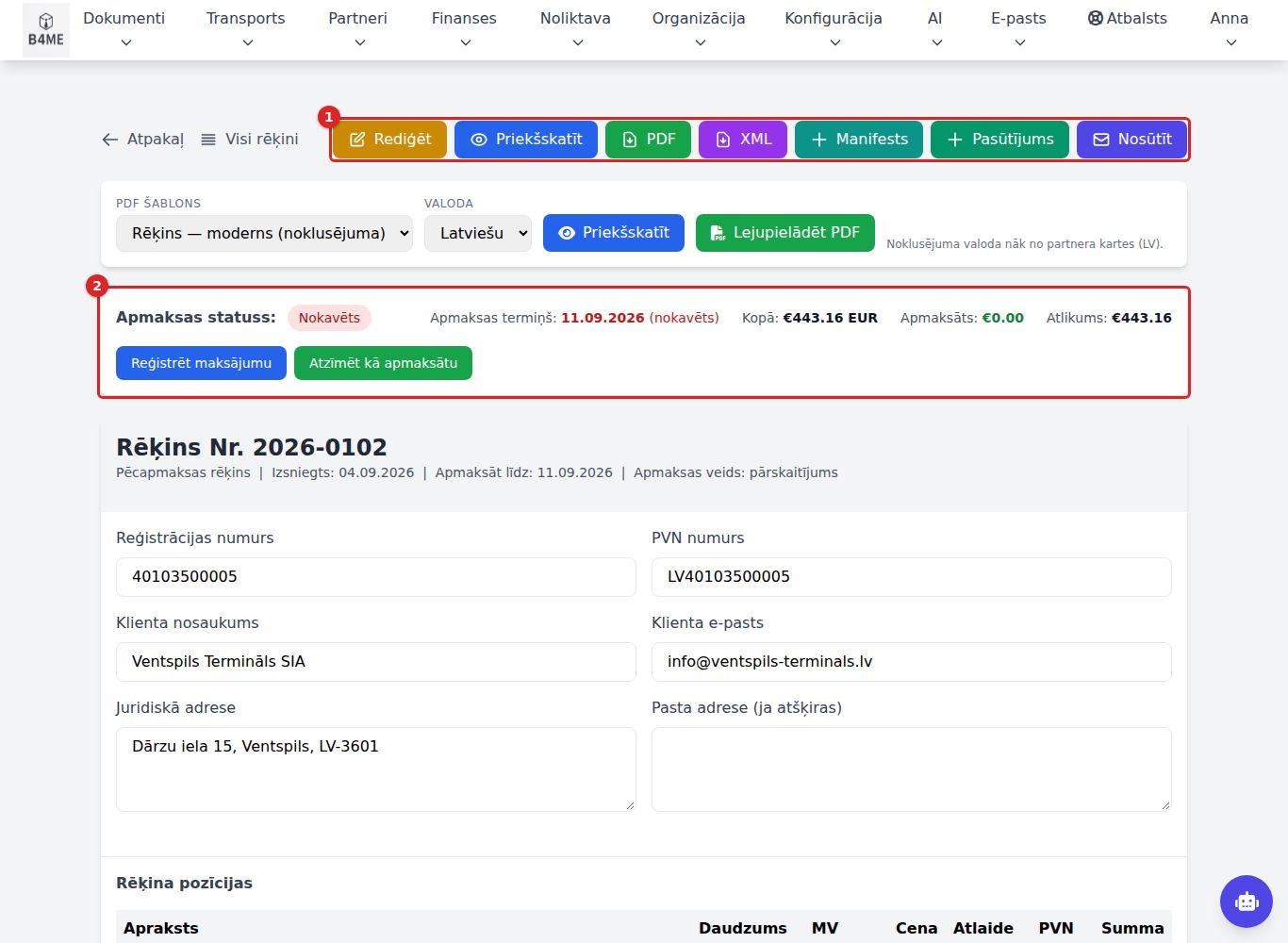
Invoice card
Invoice card
Top buttons ①: Rediģēt (Edit), Priekšskatīt (Preview) (PDF in a new tab), PDF, XML (PEPPOL e-invoice), DEKRA, Pasūtījums (Order), Manifests (Manifest), Nosūtīt (Send).
PDF šablons (PDF template) and Valoda (Language) — how the PDF will look (the language by default from the partner card).
Nosūtīt → the window "Nosūtīt rēķinu pa e-pastu" (Send the invoice by e-mail): Saņēmēja e-pasts (Recipient e-mail), Kopija (CC) (Copy (CC)), Tēma (Subject), Ziņojums (Message) → Nosūtīt. Attached — PDF and XML. The e-mail is visible in the E-pasta žurnālā (E-mail log).
Atgādināt (Remind; for an unpaid invoice) → the window "Atgādināt par apmaksu" (Payment reminder): the client receives the same invoice (PDF) again with a polite reminder — up to the due date that the due date is approaching, after it that the invoice is still unpaid. The recipient, subject and text can be edited. The button works regardless of the reminder settings. The window and the invoice's Atgādinājumi par apmaksu (Payment reminders) block show when and to whom a reminder went (automatically or with the button); the button carries a ✓ with the last date. If the button has already reminded, the automatic reminder does not send the same one again.
Payment ②
The block shows Kopā (Total), Apmaksāts, Atlikums (Remaining balance) and Maksājumu vēsture (Payment history).
Reģistrēt maksājumu (Register payment) → Summa (€) (Amount (€)), Datums (Date), Piezīme (Note) → Saglabāt (Save). A partial payment → status Daļēji apmaksāts (Partially paid).
Atzīmēt kā apmaksātu (Mark as paid) — registers the whole remaining balance.
Payments from the bank statement are attached automatically (see Bank) — they need not be entered by hand.
Payment status
Meaning
Neapmaksāts
nothing has been paid
Daļēji apmaksāts
a part has been paid, remaining balance > 0
Apmaksāts
remaining balance 0
Nokavēts
the due date has passed, not paid in full (calculated by the system, not set by a person)
Editing, deleting, credit note
Rediģēt — everything can be edited, including the number; the totals and status are recalculated, the journal entry is created anew.
Dzēst (Delete) — the invoice is deleted, its journal entry removed, the number released.
When the period is closed, the card shows the notice "Slēgts periods" (Closed period) — the invoice can no longer be edited or deleted, only payments can be registered. An error is corrected with a credit note in an open period: create a new invoice with the type Kredītrēķins and state in the comment which invoice it corrects.
There is no button "create a credit note from this invoice" — a credit note is created as a new invoice.
Services catalogue
Menu Dokumenti → Katalogs → Pakalpojumi (Documents → Catalogue → Services) — work and services with a price: name, code, category, unit, price without VAT and VAT rate. The catalogue is shared by the whole company.
In an order or invoice line, as you start typing the description, the system offers services from the catalogue (and warehouse products, if you use the warehouse) — picking one fills in the name, unit, price and VAT, which you can still change. Changing a catalogue price later does not change orders and invoices already issued. A Neaktīvs (Inactive) service is no longer offered but stays in history.
Services can also be added through the AI assistant and the API.
Recurring invoices and subscriptions
Two ways to issue invoices automatically on a schedule:
Recurring invoice — an invoice template for one partner with line items (for example, monthly service). Every morning at 06:15 the system issues the invoices whose date has come.
Subscription — a plan (for example, "Internet service 20 €/month") assigned to many partners. Every morning at 06:00 invoices are issued for active subscriptions.
The issued invoices are ordinary invoices in the section Rēķini (Invoices) — from there on you work with them as with any invoice.
Recurring invoices
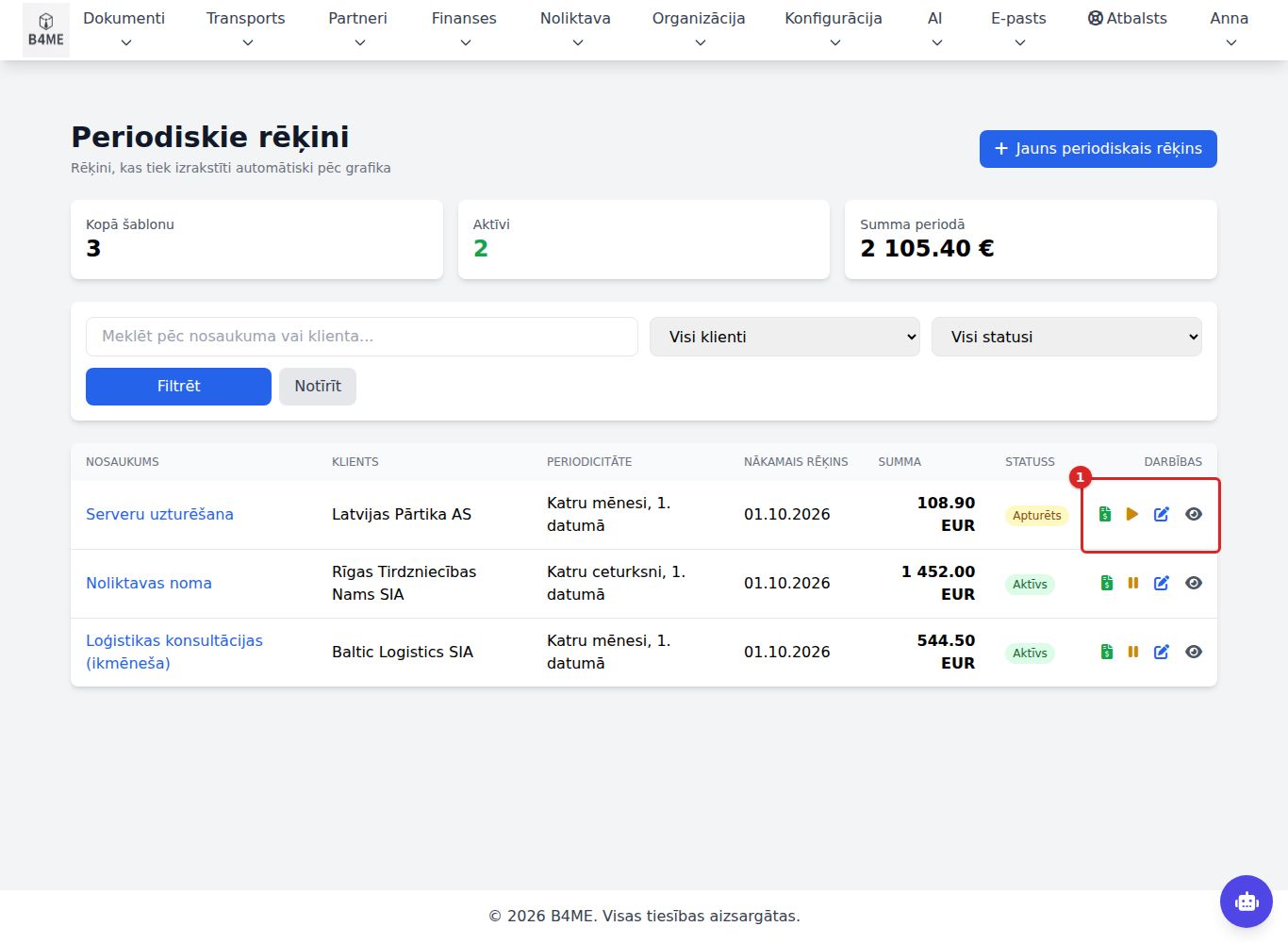
Partneri → Visi periodiskie rēķini (Partners → All recurring invoices) (or in the partner card Jauns periodiskais rēķins (New recurring invoice)).
Recurring invoices
In the list: Nosaukums (Name), Klients (Customer), Periodicitāte (Frequency), Nākamais rēķins (Next invoice), Summa (Amount), Statuss (Status) (Aktīvs (Active) / Apturēts (Paused) / Pabeigts (Completed)). Icons ①: Izveidot rēķinu tagad (Create invoice now), Apturēt (Pause) / Aktivizēt (Activate), Rediģēt (Edit).
New recurring invoice
Periodiskā rēķina nosaukums (Recurring invoice name) — for you only, does not appear on the invoice.
Biežums (Frequency) (Katru nedēļu / mēnesi / ceturksni / Reizi pusgadā / Katru gadu — weekly / monthly / quarterly / every six months / yearly), Sākuma datums (Start date), Beigu datums (End date) (empty = no end), Izrakstīšanas diena (Issue day) (day of the month; in a shorter month — the last day).
Aktīvs (ģenerēt pēc grafika) (Active (generate on schedule)); Automātiski nosūtīt rēķinu klientam pa e-pastu (Automatically send the invoice to the customer by e-mail) — then the invoice goes to the customer immediately.
Customer (must be in the partner list), invoice type, VAT, Apmaksas termiņš (dienas) (Payment term (days)), line items → Izveidot periodisko rēķinu (Create recurring invoice).
In the card: Izveidot rēķinu tagad (the schedule moves to the next period), Apturēt grafiku (Pause schedule) / Aktivizēt grafiku (Activate schedule), Ģenerēšanas vēsture (Generation history) — every attempt with the status Izdevās (Succeeded) or Kļūda (Error).
If issuing the invoice fails, the schedule is not moved — the system will try again the next morning.
If the schedule was paused for several periods, after activation one invoice is issued, not all the missed ones.
When a recurring invoice is deleted, the invoices already issued remain.
Subscription plans
Partneri → Visi abonementi / Jauns abonements (Partners → All subscriptions / New subscription): Nosaukums, Apraksts (redzams rēķinā) (Description (visible on the invoice)), Perioda veids (Period type) and Periodu skaits (Number of periods), Cena par periodu (EUR) (Price per period (EUR)), Sākuma maksa (Setup fee), PVN likme (VAT rate), trial days and price, Kad izveidot rēķinu (When to create the invoice) (at the start of the period, at the end…), Apmaksas termiņš (Payment term), Automātiski nosūtīt rēķinu partnerim (Automatically send the invoice to the partner), Automātiska atjaunošana pēc noklusējuma (Automatic renewal by default) → Saglabāt abonementu (Save subscription).
If a subscription covers several services (for example, internet and television), enter each one with its own name and price in the Cenas (Prices) block using Pievienot pakalpojumu (Add service). Every service becomes a separate invoice line, and Cena par periodu is then the sum of the services (the field can no longer be edited by hand). With no services, the invoice has a single line with the subscription's description and price. A partner's Individuālā cena (Individual price) for such a subscription is the total of the whole invoice — the lines are recalculated proportionally.
Atgādinājumi par apmaksu (Payment reminders) in the plan form: Kā rēķinu iestatījumos (As in the invoice settings; the default), Savas dienas šim abonementam (Own days for this subscription — how many days before and after the due date) or Nesūtīt (Do not send). Only what is chosen here applies to this plan's invoices, so one invoice never gets the same reminder twice.
In the plan card: Piešķirt partnerim (Assign to partner) (several partners can be selected at once), Dublēt abonementu (Duplicate subscription), Deaktivizēt (Deactivate) (the plan is no longer assigned to new partners, existing ones continue), Arhivēt (Archive), Dzēst abonementu (Delete subscription) (only if there are no active subscriptions).
Partner subscriptions
Partneri → Partneru abonementi (Partners → Partner subscriptions) or in the partner card Piešķirt abonementu (Assign subscription): choose the plan, Sākuma datums, Automātiska atjaunošana (Automatic renewal), Individuālā cena (EUR) (Individual price (EUR)) (empty = plan price), how to send invoices → Piešķirt abonementu.
Each subscription has an Abonenta numurs (Subscriber number). Ask the customer to state it in the payment reference — then the bank payment will be matched automatically.
In the subscription's edit form, Atgādinājumi par apmaksu (Payment reminders) → Šim partnerim nesūtīt (Do not send to this partner) switches reminders off for one customer; Kā abonementa plānā (As in the subscription plan) follows the plan.
Status
Meaning
Buttons in the card
Aktīvs
invoices are issued
Apturēt, Atcelt perioda beigās (Cancel at end of period), Atcelt nekavējoties (Cancel immediately), Atjaunot manuāli (Renew manually)
Izmēģinājuma periods (Trial period)
trial price
Kavēta apmaksa (Overdue payment)
the invoice was not paid on time
Atjaunot manuāli
Apturēts
invoices are not issued
Aktivizēt
Atcelts (Cancelled) / Beidzies (Expired)
no longer billed
Atsākt abonementu (Resume subscription) (if cancelled at end of period)
Invoices are issued only for subscriptions with Automātiska atjaunošana enabled. Subscription invoices have their own numbering (INV-gadsmēnesis-NNNN).
If the partner has a prepayment (balance in the section Finanses → Partneru bilances (Finance → Partner balances)), it is automatically credited against the next subscription invoice.
Incoming documents and inbox
Incoming documents are supplier invoices, receipts and delivery notes — your expenses. They go into VAT reports, accounting and payables. The Document inbox is an antechamber: files sent via the AI chat, Telegram, the mobile app or e-mail land there. They reach the accounts only once they have been recognised as an invoice, a receipt or a delivery note.
File (chat, Telegram, app, e-mail)
→
Document inbox — recognition
→
Incoming document
→
Payment (bank) → Paid
List
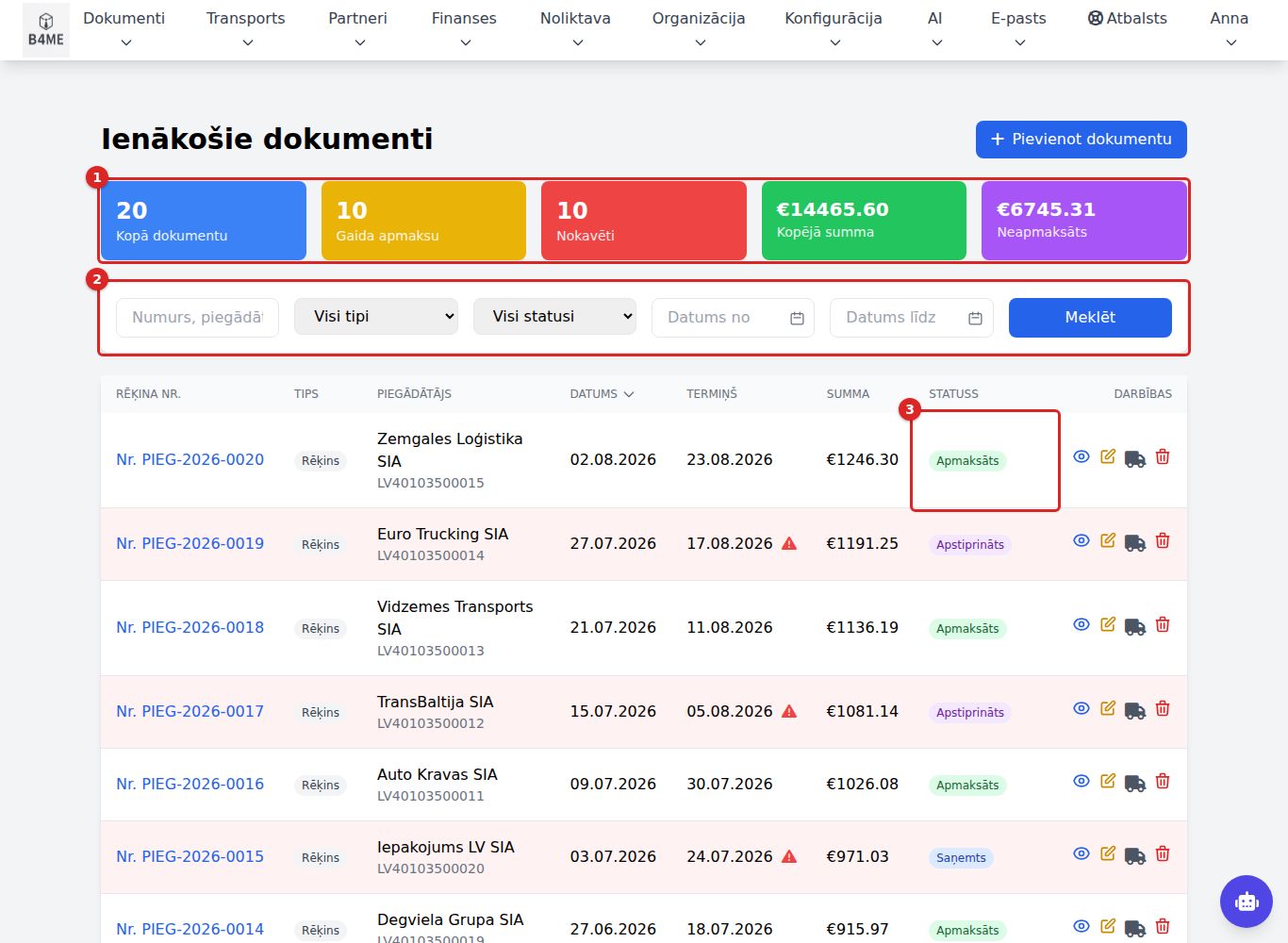
Dokumenti → Visi dokumenti (Documents → All documents).
Incoming documents
At the top — a summary ①: Kopā dokumentu (Total documents), Gaida apmaksu (Awaiting payment), Nokavēti (Overdue), Kopējā summa (Total amount), Neapmaksāts (Unpaid) (for all documents, not only the selected ones).
Filters ②: search, type, status, date → Meklēt (Search).
Statuss (Status) ③ — clicking the status of an unpaid document marks it as Apmaksāts (Paid); clicking that of a paid one opens the status selection. If this would cancel an already registered payment, the system asks for confirmation.
New incoming document
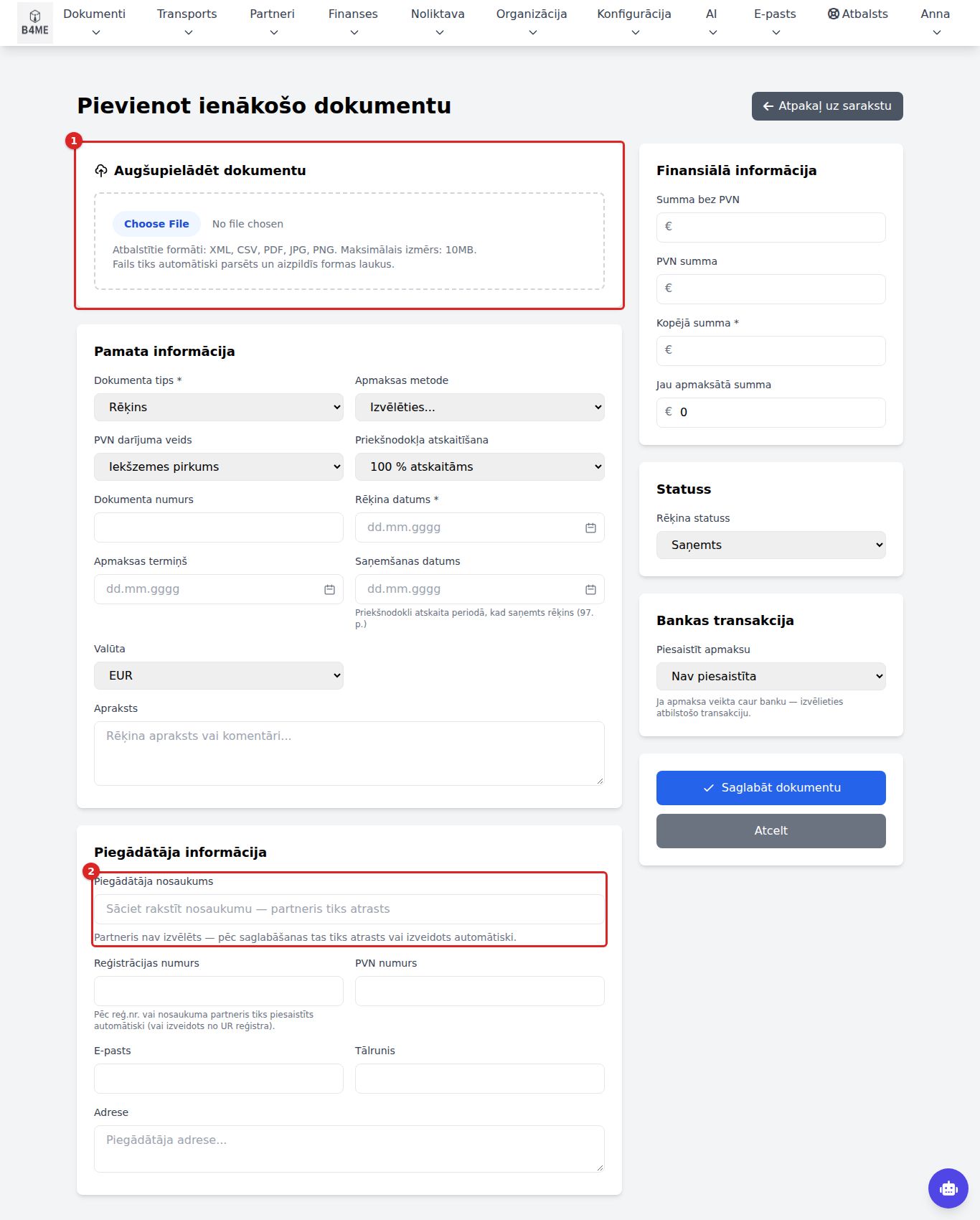
Dokumenti → Jauns dokuments (Documents → New document) (in the list — Pievienot dokumentu (Add document)).
New incoming document
Augšupielādēt dokumentu (Upload document) ① (PDF, XML, CSV, image up to 10 MB) and Parsēt failu (Parse file) (or Atpazīt failu ar AI (Recognise file with AI), if AI recognition is enabled — it also reads scanned PDFs and photos). The system fills in the empty fields; check them.
Dokumenta tips (Document type) (Rēķins, Čeks, Līgums, Pavadzīme, Cits — Invoice, Receipt, Contract, Delivery note, Other), Rēķina datums (Invoice date), Saņemšanas datums (Receipt date) (input VAT goes into the VAT period in which the invoice was received; if the field is empty — by the invoice date), Apmaksas termiņš (Due date), PVN darījuma veids (VAT transaction type) and Priekšnodokļa atskaitīšana (Input VAT deduction) (100 %, representation 40 %, passenger car 50 %, not deductible).
Piegādātāja nosaukums (Supplier name) ② — start typing; if the partner does not exist, it will be created.
Summa bez PVN (Amount excl. VAT), PVN summa (VAT amount), Kopējā summa; if a part has already been paid — Jau apmaksātā summa (Amount already paid).
If the payment is already in the bank — Piesaistīt apmaksu (Attach payment) and select the bank transaction.
Saglabāt dokumentu (Save document).
Document card
Darbības (Actions) → Apstiprināt (Approve) / Noraidīt (Reject) (while the status is Saņemts (Received)), Lejupielādēt .dekra (Download .dekra), Dzēst (Delete).
The attached file can be downloaded.
Pievienot maksājumu (Add payment) — Summa (Amount), Maksājuma datums (Payment date) → the status becomes Daļēji apmaksāts (Partially paid) or Apmaksāts.
Saistītie transporta pasūtījumi (Related transport orders) — a carrier's invoice is linked to a transport order (Saistīt pasūtījumus (Link orders)).
In a closed period the document cannot be edited, but the payment and bank matching can.
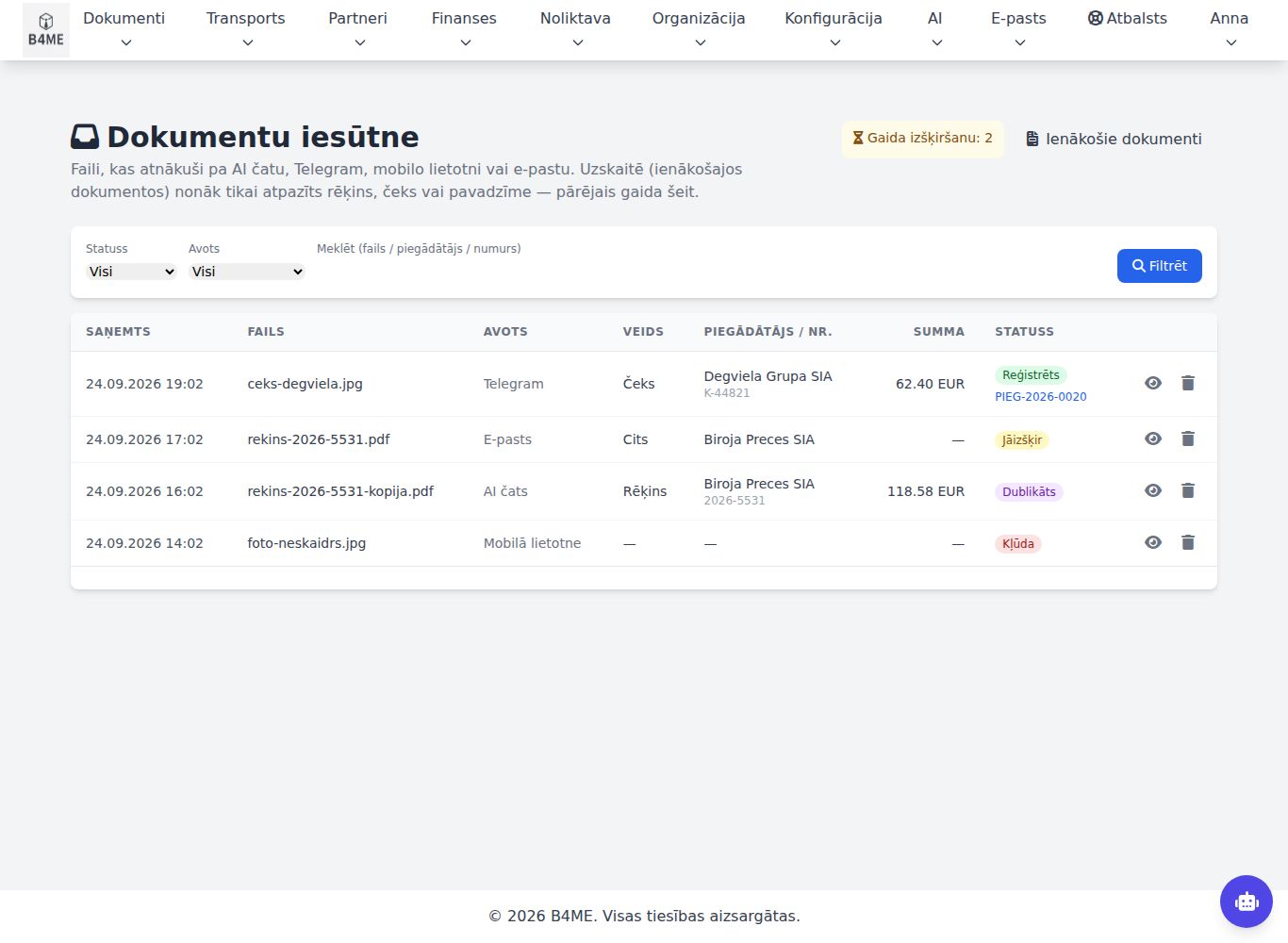
Dokumenti → Dokumentu iesūtne (Documents → Document inbox). At the top — how many documents are Gaida izšķiršanu (Awaiting decision).
Document inbox
Each file is recognised automatically:
an invoice, a receipt or a delivery note → immediately becomes an incoming document (status Reģistrēts (Registered) with a link);
the same file or document already exists → Dublikāts (Duplicate);
another document (a certificate, a contract, a bank confirmation) → Jāizšķir (To be decided) — waits for a person;
recognition failed → Kļūda (Error).
When you open the document (Skatīt (View)), in the section "Ko darīt ar šo dokumentu?" (What to do with this document?):
Reģistrēt uzskaitē (Register in the accounts) — choose Dokumenta veids (Document type) → Izveidot ienākošo dokumentu (Create incoming document); a form opens — check the fields and save;
Neuzskaitīt (Do not record) — Atzīmēt kā neuzskaitāmu (Mark as not to be recorded) (the file stays in the inbox and does not reach the accounts);
Atpazīt vēlreiz (Recognise again) — Sūtīt atpazīšanai (Send for recognition).
The AI assistant: attach a photo or PDF of a receipt or invoice in the chat (paper clip) or ask "Scan a receipt" — the file lands in the inbox and is recognised. The assistant also finds incoming invoices: "Show the latest invoices from supplier Piemērs". See AI assistant.
Contracts
Contracts with partners: data, text (from a template), PDF and attached files.
Contract list
Dokumenti → Visi līgumi (Documents → All contracts): Numurs (Number), Partneris (Partner), Veids (Type), Datums (Date), Beidzas (Expires), Summa (Amount), Statuss (Status). Search by number, partner or subject. On the dashboard the card Aktīvie līgumi (Active contracts) shows how many contracts expire within 30 days.
New contract
Dokumenti → Jauns līgums (Documents → New contract) — first the data, then the text:
Līguma puses (Contract parties): Puse A — mūsu uzņēmums (Party A — our company), Puse B — partneris (Party B — partner), if needed — Starpnieks (Intermediary).
Pamatinformācija (Basic information): Līguma numurs (Contract number), Līguma veids (Contract type), Līguma priekšmets (Contract subject), Līguma datums (Contract date), Statuss, Spēkā no (Valid from) / Spēkā līdz (Valid until).
Līguma šablons (Contract template) — if selected, the text is generated immediately, filling the placeholders with the contract and partner data.
Izveidot līgumu (Create contract).
Contract card
Saturs (Content) — text editor; Ģenerēt (Generate) from another template (the existing text is replaced); in the sidebar Pieejamie pleisholderi (Available placeholders) (a click inserts one) → Saglabāt saturu (Save content).
PDF — the contract in PDF format (available once there is text).
Saistītie ieraksti (Related records) — link an invoice, an order, a transport order etc.: Tips (Type), Ieraksta ID (Record ID) → Piesaistīt (Link).
Līguma faili (Contract files) — the signed scanned version, attachments (up to 20 MB) → Augšupielādēt (Upload).
The status is changed by a person (in the form). When the Spēkā līdz date has passed, the card shows the mark Beidzies (Expired).
Contract templates
Konfigurācija → Līgumu šabloni (Configuration → Contract templates) (or Šabloni (Templates) in the contract list): standard contract texts with placeholders — the places where the partner, company and contract data are inserted into the contract (the list is shown in the editor sidebar). Jauns šablons (New template) → Nosaukums (Name), Līguma veids, Līguma teksts (Contract text), if needed — CSS → save. System templates cannot be changed — Kopēt (Copy) and edit the copy.
Logbooks
Logbooks required by regulations, kept electronically. The first is the fire safety logbook — the "Log of fire protection system activations and faults" under Annex 9 to Cabinet Regulation No. 238 of 19.04.2016. The electronic logbook has exactly the same columns as the annex form, and every entry is signed with a second factor.
Logbook list
Dokumenti → Ugunsdrošības žurnāli (Documents → Fire safety logbooks): one logbook per site (territory). The list shows the number of signed entries, how many entries still await the responsible person's confirmation, and the date of the latest event.
New logbook
Dokumenti → Jauns ugunsdrošības žurnāls (New fire safety logbook) — the logbook header and maintenance conditions:
Nosaukums sarakstā (Name in the list) — for example, "Warehouse — fire alarm".
Atbildīgā persona (Responsible person; your company details are pre-filled), Objekta vai teritorijas nosaukums (Site or territory name), Adrese (Address), Sistēmas(-u) tehniskās apkopes veicējs (Maintenance provider) with certificate number.
Sistēmas objektā (Systems on site) — one per line; they are suggested in the entry form.
Nosacījumi sistēmas tehniskajai apkopei un uzturēšanai (Conditions for system maintenance and upkeep) — planned work, Periodiskums (Frequency), Atbildīgā persona (Responsible person). Three typical tasks are pre-filled; Pievienot darbu (Add task) adds a row.
Nosacījumi izstrādāti saskaņā ar (Conditions drawn up in accordance with) — regulation, standard, manufacturer documentation.
Izveidot žurnālu (Create logbook).
Entry and signature
In the logbook, Jauns ieraksts (New entry): Sistēmas nosaukums (System name), Datums (Date), Laiks (plkst.) (Time), Notikums (Event: maintenance, repair, activation, false alarm, fault, functional check), Veikto darbību / darbu apraksts (Description of actions taken — e.g. who was notified of the activation), Atzīme par sistēmas tehnisko stāvokli (Technical condition), Piezīmes (Notes) → Saglabāt un pāriet uz parakstu (Save and continue to signature).
A saved entry is a draft: only you see it, you can Labot (Edit) or Dzēst (Delete) it, and it is not yet in the logbook. In the Parakstīt ierakstu (Sign entry) block, confirm with your second factor — in the B4ME app (compare the code on screen with the one on the phone) or with an Autentifikatora kods (authenticator code). Once signed, the entry gets its Nr. p. k. (sequence number) and can no longer be edited or deleted.
A mistake in a signed entry is corrected with Labot ar jaunu ierakstu (Correct with a new entry): the new entry refers to the old one, which stays unchanged with the note "labots ar Nr. …" (corrected by No. …) — as in a paper logbook, without crossing out.
Only a user who has both can sign: a first name and surname (from the linked employee card or the profile fields Vārds and Uzvārds) and a configured second factor. If either is missing, the signing block links to Profils (Profile).
Responsible person's confirmation
The form has a second signature — "the responsible person or their authorised person". Open a signed entry and confirm with your second factor in the Apliecināt kā atbildīgā vai pilnvarotā persona (Confirm as the responsible or authorised person) block. Quicker — straight from the list: click gaida apliecinājumu (awaiting confirmation) in the entry's row and enter just your second-factor code in the dialog (or approve in the B4ME app).
Printout for the inspector
On the logbook page, Izdruka inspektoram → Lejupielādēt PDF (Printout for the inspector → Download PDF; optionally a period No / Līdz — From / To) — the logbook in the Annex 9 layout: header, maintenance conditions, all signed entries with signing time, factor and fingerprint. The logbook must be available at the control panel: open it on a computer or tablet next to the panel, or download the PDF.
Why entries cannot be changed
Every signed entry gets a digital fingerprint linked to the previous entry's fingerprint. The green Integritāte pārbaudīta (Integrity verified) block on the logbook page confirms that no entry has been changed after signing; if data were ever altered, the system shows it in a red block and on the printout.
Transport
The Transports (Transport) menu. Four linked registers:
Transport order — one trip: customer, carrier, route, Cena klientam (Price to customer) (what is paid to us) and Fraktas summa (Freight amount) (what we pay), profit.
Incoming order — a customer's order to us (the customer's number, the amount the customer owes, documents).
Accompanying documents — CMR, delivery notes, acts attached to a trip. They are only files — they do not reach reports or accounting.
Manifests — a summary of a carrier's trips for a period.
Incoming order (from the customer)
→
Transport order (trip)
→
Invoice to the customer — trip "Completed"
→
Carrier's invoice → incoming documents
Transport order list
Transports → Visi transporta pasūtījumi (Transport → All transport orders).
Transport orders
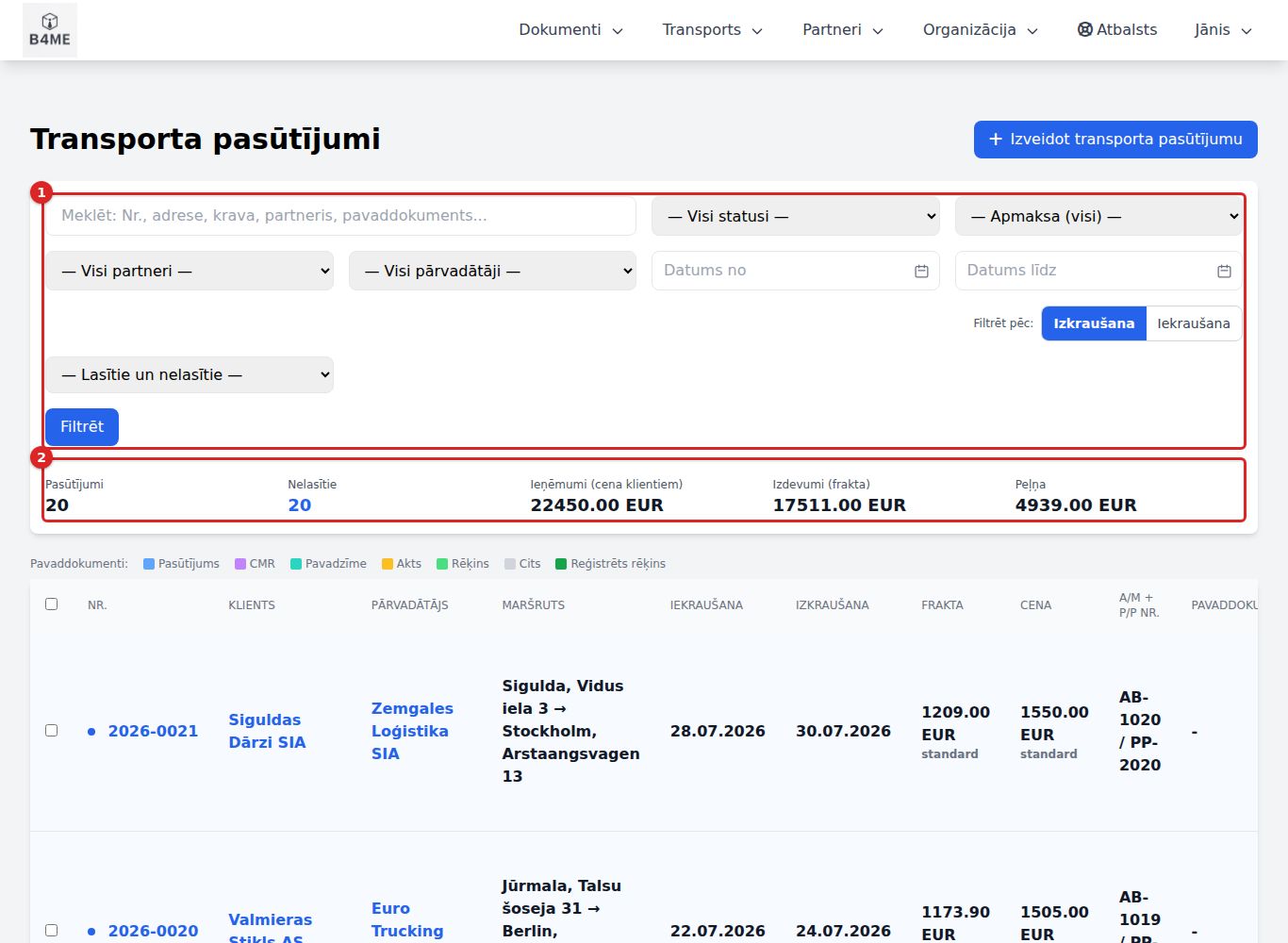
Filters ①: search (number, address, cargo, partner, vehicle plate, accompanying document), status, payment, Klients (Customer) and Pārvadātājs (Carrier) (you can just type part of the name instead of picking from the list), A/M vai P/P numurs (Truck or trailer plate — full or partial, with or without spaces: MC 7704 / B 321 A, mc7704, 321A), Periods (Period) by the Izkraušanas (unloading) / Iekraušanas (loading) / Jebkura (either) date (quick: Šis mēnesis (This month), Pagājušais mēnesis (Last month)), Lasīšanas statuss (Read status) → Filtrēt (Filter). All filters work together: carrier + plate + period find the order behind a carrier's invoice.
Izgūt sarakstu: Excel / CSV (Export list) — the selected orders as a file (number, carrier, truck, trailer, loading and unloading date, linked carrier invoice) with the same filters as in the form.
Summary ② for the selection: Pasūtījumi (Orders), Nelasītie (Unread), Ieņēmumi (cena klientiem) (Income (price to customers)), Izdevumi (frakta) (Expenses (freight)), Peļņa (Profit).
Bold blue rows are unread — orders you have not opened yet or that a colleague has changed in the meantime.
Statuss (Status) (the column on the right of the table) — a click on an unfinished order sets Pabeigts (Completed), on a completed one it opens the selection (Gaida (Pending), Procesā (In progress), Pabeigts, Atcelts (Cancelled)).
Row icons: Izveidot rēķinu (Create invoice), Reģistrēt pārvadātāja rēķinu (Register carrier's invoice), Pievienot pavaddokumentu (Add accompanying document), Pievienot ienākošo dokumentu (Add incoming document), Jauns pasūtījums ar tiem pašiem datiem (New order with the same data), Skatīt (View), Rediģēt (Edit), Dzēst (Delete).
One invoice for several trips: tick the rows → Izveidot rēķinu (N) (Create invoice (N)).
The AI assistant can create, find and edit a transport order and link invoices to it: "Create a transport order: client Piemērs, carrier Kravas, Riga → Tallinn, price 800, freight 650", "Mark the order as completed". See AI assistant.
New transport order
Transports → Jauns transporta pasūtījums (Transport → New transport order) (if numbering is not yet set up, the system first opens its settings).
New transport order
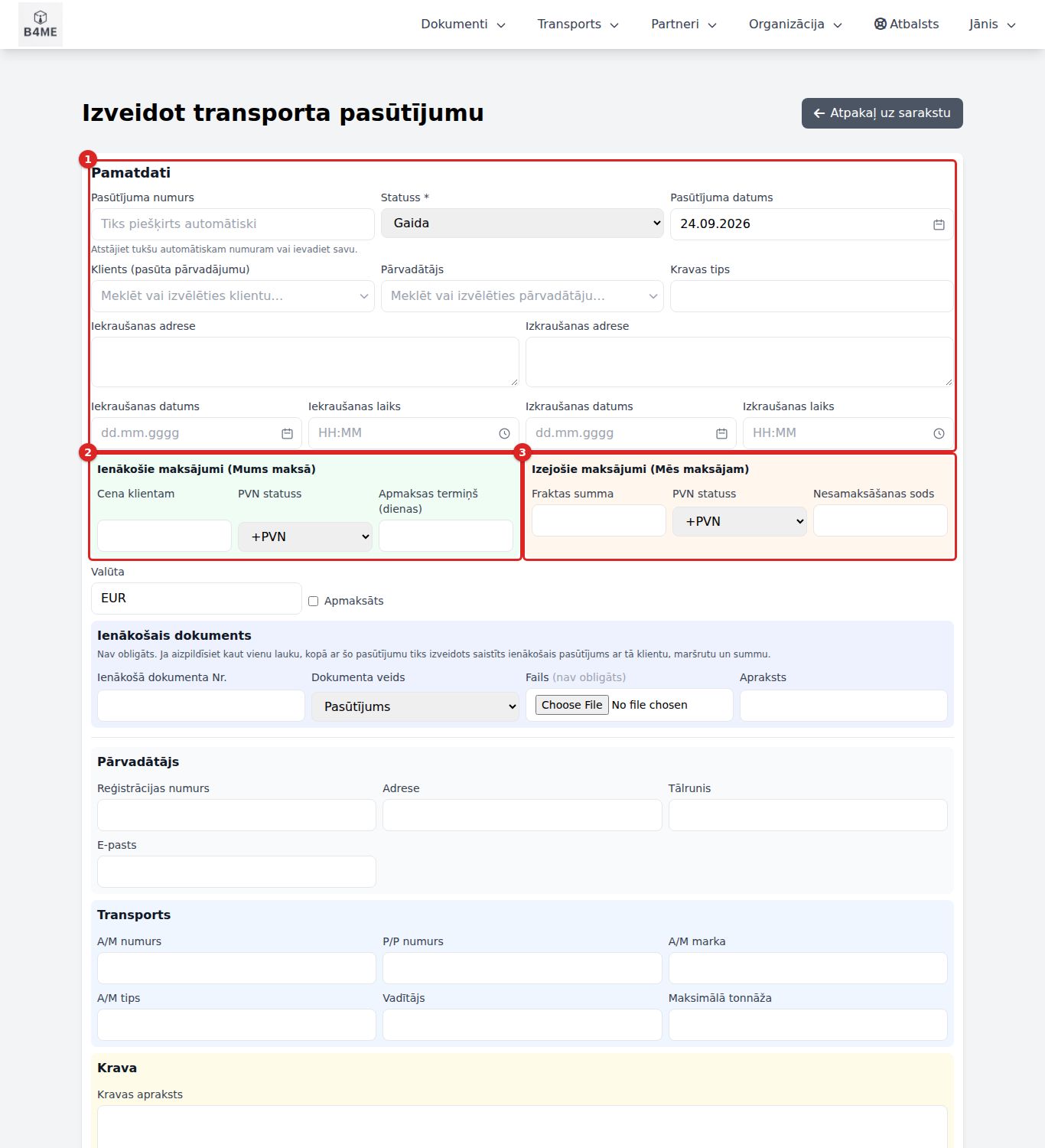
Pamatdati (Basic data) ①: Statuss, Pasūtījuma datums (Order date), Klients (Customer) — start typing; Saglabātie maršruti (Saved routes) — selecting one fills in the addresses and cargo; Pārvadātājs (Carrier); Saglabātais transports (Saved vehicle) — fills in the truck and trailer registration numbers. Pre-filled fields have a red frame until you correct them.
Addresses, dates and times.
Ienākošie maksājumi (Mums maksā) (Incoming payments (Paid to us)) ②: Cena klientam, PVN statuss (VAT status) (+PVN / PVN 0% / bez PVN — +VAT / VAT 0% / no VAT), Apmaksas termiņš (dienas) (Payment term (days)).
Sections Pārvadātājs, Transports (Vehicle), Krava (Cargo), Iekraušana, Izkraušana, Dokumenti un nosacījumi (Documents and conditions).
Izveidot transporta pasūtījumu (Create transport order).
If the carrier is not yet in the partner list, enter the Reģistrācijas numurs (Registration number) in the section Pārvadātājs — the system will find the company in the register and create the partner. After saving, the card asks Saglabāt nākamajām reizēm? (Save for next time?): the route is saved only with Saglabāt maršrutu (Save route) (one-off destinations — Nesaglabāt (Don't save)); the vehicle is already saved — Paturēt (Keep, optionally with a name) or Nesaglabāt (Don't save).
Order card
Buttons: Skatīt PDF (View PDF), Lejupielādēt PDF (Download PDF), Izveidot rēķinu / Skatīt rēķinu (View invoice), Jauns ar tiem pašiem datiem (New with the same data), Pievienot pavaddokumentu, Pievienot ienākošo dokumentu, Mainīt statusu (Change status), Rediģēt. At the top you see who last changed it and when.
Izveidot rēķinu opens a new invoice: the customer, one line for the trip, the price and VAT from the field PVN statuss. When the invoice is saved, the trip becomes Pabeigts, and the invoice is shown in the block Saistītie rēķini (Related invoices).
Ienākošie dokumenti (izdevumi) (Incoming documents (expenses)) — the carrier's invoices for this trip. Only these reach accounting and VAT reports.Reģistrēt rēķinu (Register invoice) opens the incoming document form with the carrier and the freight amount (enter the invoice date from the document — it determines the VAT period); Saistīt esošu (Link existing) — if the document is already registered. If the amount differs from the freight, a warning is shown.
Transports → Ienākošie pasūtījumi (Transport → Incoming orders) — customers' orders to us. Jauns ienākošais pasūtījums (New incoming order): Klienta pasūtījuma Nr. (Customer order No.) (the customer's number; our number is assigned automatically), customer, cargo and route, Summa bez PVN (Amount excl. VAT), PVN likme (VAT rate), Apmaksas termiņš (dienas), attached documents → Saglabāt (Save).
In the card: Saistītie transporta pasūtījumi (Related transport orders) → Izvēlēties (Select); Izveidot rēķinu (issue an invoice to the customer); Mainīt statusu.
Status
Payment (calculated by the system)
Jauns (New) → Apstiprināts (Approved) → Procesā → Izpildīts (Fulfilled) (or Atcelts)
Nav apmaksāts (Not paid), Daļēji apmaksāts (Partially paid), Apmaksāts (Paid), Nokavēts (Overdue)
The status is changed only by a person — also after the invoice has been issued.
Accompanying documents
Transports → Pavaddokumenti / Jauns pavaddokuments (Transport → Accompanying documents / New accompanying document): select the transport order, Dokumenta Nr. (Document No.) (or a file), type (CMR, Pavadzīme, Akts… — CMR, Delivery note, Act…), date, file → Saglabāt.
If you attach a carrier's invoice as an accompanying document, it is only a file. For the invoice to reach the reports, register it as an incoming document (Reģistrēt rēķinu in the order card).
Manifests
Transports → Visi manifesti / Jauns manifests (Transport → All manifests / New manifest): Manifesta numurs (Manifest number) (entered by you), Pārvadātājs, Sākuma datums (Start date) / Beigu datums (End date), Kilometri (Kilometres), Cena par km (Price per km), Kopējā cena (bez PVN) (Total price (excl. VAT)), PVN likme, Statuss (Melnraksts (Draft), Aktīvs (Active), Slēgts (Closed)) → Izveidot (Create). In the card: Izveidot rēķinu, link orders and the carrier's incoming invoice. A manifest with linked orders cannot be deleted.
The AI assistant can create and edit a manifest and link invoices and the carrier's incoming invoice to it: "Create manifest M-15 for carrier Kravas for September, 4200 km at 0.90". The assistant asks for the manifest number if you don't give one.
Routes and vehicles
Presets for filling in the form (Transports → Maršruti / Transportlīdzekļi (Transport → Routes / Vehicles)). A route belongs to a customer, a vehicle — to a carrier; they come from new orders (a route only if you save it) or are entered by hand. The Reisi (Runs) column shows how many orders use the route; Tikai vienreizējie (0–1 reiss) (One-off only) selects those, and the ticked ones can be removed with Dzēst atzīmētos (Delete selected). Editing or deleting a preset does not change existing orders. In the route card — Izveidot pasūtījumu ar šo maršrutu (Create order with this route).
Public link
In the transport order card, Izveidot publisko saiti (Create public link) — the recipient opens the order PDF without logging in (45 days). If the order changes — Jauna saite (New link); Atsaukt (Revoke) — the link no longer opens.
Warehouse
The Noliktava (Warehouse) menu. Two layers:
Preces (Products) — a catalogue with the total quantity of each product;
Noliktavas → Uzglabāšanas vietas (Warehouses → Storage locations) (bins, shelves, chambers) — where exactly a product is. A quantity not placed in any location is Neizvietots (Unplaced).
The quantity changes only through movements (receipt, placement, transfer, issue, write-off, adjustment). Every movement is visible in the Kustību žurnālā (Movement log). Invoices and incoming documents do not change the warehouse stock balance.
Receipt (+ stock balance)
→
Placement in a bin
→
Issue document — draft
→
Approve (− stock balance)
Products
Noliktava → Visas preces (Warehouse → All products).
Product list
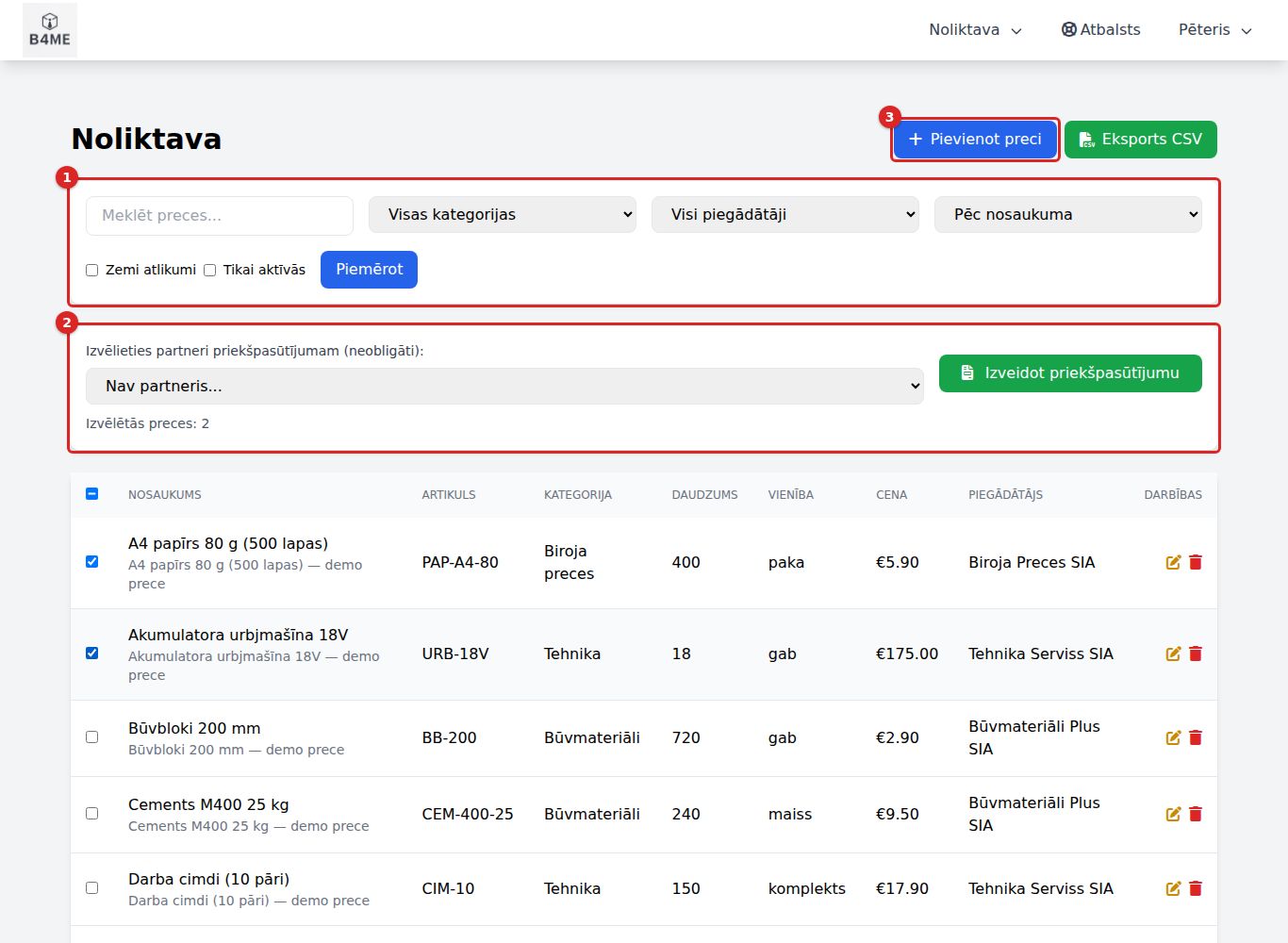
Filters ①: search (name, article number, category), category, supplier, Zemi atlikumi (Low stock), Tikai aktīvās (Active only) → Piemērot (Apply).
In the column Daudzums (Quantity) — the available stock balance; a red Zemi atlikumi if the minimum has been reached.
Izveidot priekšpasūtījumu (Create pre-order) ② — tick the products, if needed select a partner → a pre-order with these products opens.
Pievienot preci (Add product) ③ / Eksports CSV (CSV export).
New product
Pievienot preci: Preces nosaukums (Product name), Artikuls (Article number) (unique), Kategorija (Category), Daudzums noliktavā (Quantity in stock) (recorded as the initial receipt), Mērvienība (Unit of measure), Minimālais atlikums (Minimum stock) and Brīdināt, sasniedzot minimālo atlikumu (Warn when the minimum stock is reached), storage temperature, prices, PVN likme (VAT rate), Galvenais piegādātājs (Main supplier) → Izveidot preci (Create product).
A product that already has movements or is in an issue document cannot be deleted — mark it as inactive.
Warehouses and storage locations
Noliktava → Noliktavas → Jauna noliktava (Warehouse → Warehouses → New warehouse): Nosaukums (Name), Kods (Code), responsible person, address, Uzglabāšanas režīms (Storage mode) (temperature) → Saglabāt (Save).
Noliktava → Jauna uzglabāšanas vieta (Warehouse → New storage location): Noliktava, Kods (unique within the warehouse), Veids (Type) (Plaukts, Stelāža, Paletes vieta, Ledusskapis, Saldētava… — Shelf, Rack, Pallet space, Refrigerator, Freezer…), Ietilpība (Capacity), Ko šeit drīkst glabāt (What may be stored here) (temperature, product categories) → Saglabāt.
The system does not allow placing a product in a location where it does not match the mode or category or where there is no free space. A location with products and a warehouse with locations cannot be deleted. The list shows Aizņemtība (Occupancy) (green < 80 %, yellow ≥ 80 %, red — full).
Movements
Noliktava → Novietot / pārvietot (Warehouse → Place / transfer) — choose the operation:
Operation
What happens
Pieņemšana (Receipt)
the total stock balance increases; the location can be specified right away
Novietošana (Placement)
an unplaced product is put into a bin; the total stock balance does not change
Pārvietošana (Transfer)
from one bin to another
Korekcija (Adjustment)
enter Jaunais kopējais atlikums (New total stock balance) (the actual one after stocktaking) — the difference is recorded in the log
Prece (Product), location(s), Daudzums, Cena par vienību (Price per unit) → Izpildīt (Execute). Kustību žurnāla entries cannot be edited.
Issue and write-off
Noliktava → Izsniegšana un norakstīšana (Warehouse → Issue and write-off) → Izsniegšana (Issue) or Norakstīšana (Write-off) (or Atgriešana piegādātājam (Return to supplier)).
Pozīcijas (Line items) — product, No vietas (From location) (empty = from the unplaced stock balance), quantity, price → Pievienot rindu (Add row).
Saglabāt melnrakstu (Save draft) — the number is IZS-, NOR- or ATG-gads-NNNN. A draft does not change the stock balance.
In the card Apstiprināt (Approve) — the product is written off from the stock balance (and from the bin).
Status
What you can do
Melnraksts (Draft)
Rediģēt (Edit), Apstiprināt, Dzēst (Delete)
Apstiprināts (Approved)
Atcelt dokumentu (Cancel document) — the product returns to the warehouse
Atcelts (Cancelled)
—
Issue documents are not posted and are not linked to invoices.
Stock alerts
Every day at 07:30 the system checks the products whose card specifies a minimum stock and has alerts enabled, and sends a summary notification. On the page — Atvērtie (Open) alerts (Zems atlikums (Low stock) / Beidzies (Out of stock)) and Vēsture (History); Pārbaudīt tagad (Check now) — a check right away. When the stock balance is restored, the alert closes automatically; Aizvērt (Close) — by hand (if the stock is still low, it reopens at the next check).
Order products
Issue documents for an order's product lines are created by the system when the order becomes Pabeigts (Completed) — the document shows the order. Such a document cannot be cancelled by hand — it is cancelled by changing the order's status.
Bank
The bank statement is the main source from which the system learns which invoice has been paid. Transactions enter the system in two ways: from a statement file (uploaded by you) or from a connected bank (loaded by the system, twice a day). Both can work at the same time — duplicates are not registered.
Statement or connected bank
→
Transactions — automatic matching
→
Awaiting confirmation — a person checks
→
Confirmed → invoice paid
Overview and import
Finanses → Pārskats un imports (Finance → Overview and import) (the page "Bankas izraksti" (Bank statements)).
Bank statements
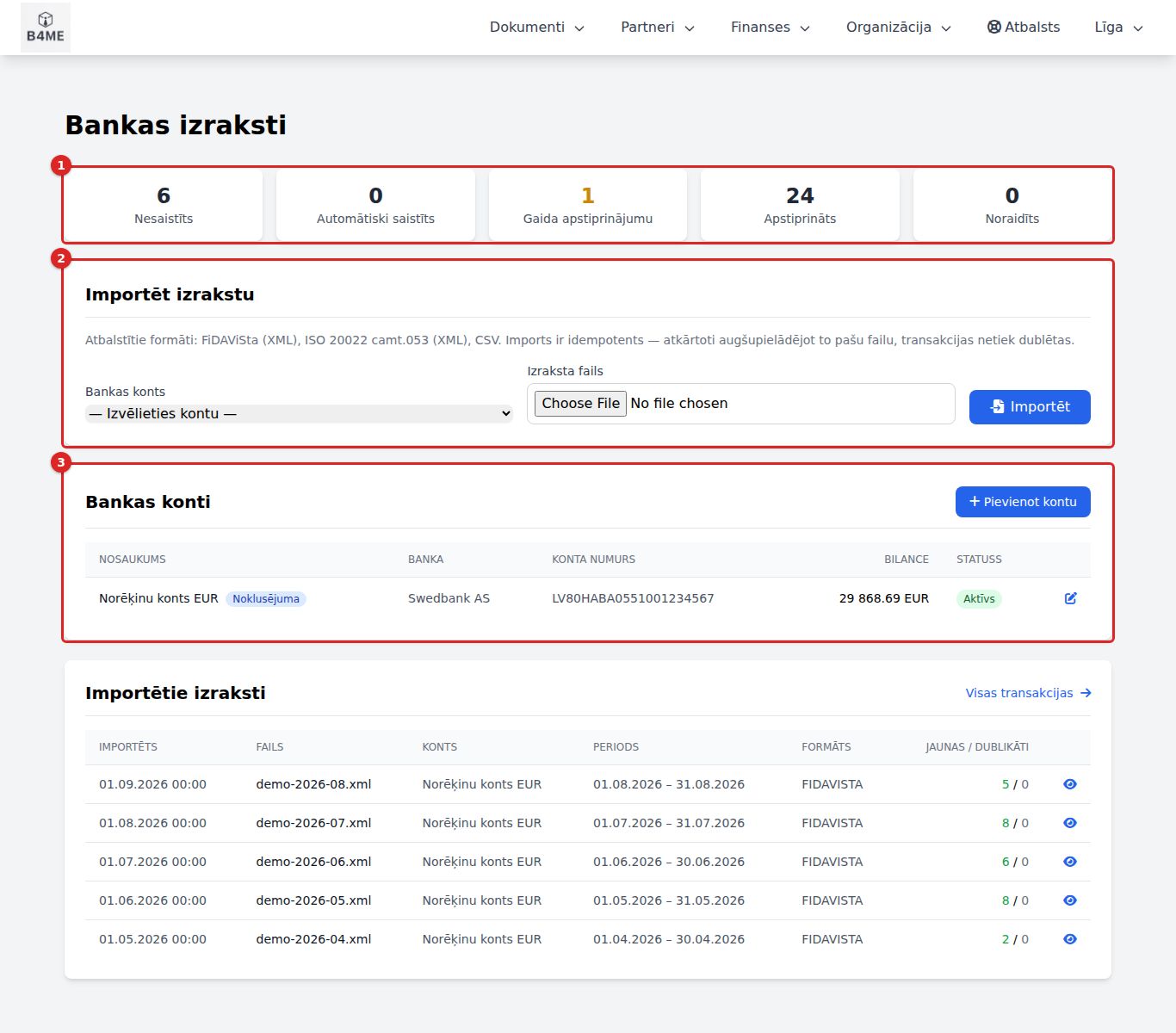
At the top — status tiles ① with counts; a click opens the respective transactions. The yellow Gaida apstiprinājumu (Awaiting confirmation) means: there is work for you.
Importēt izrakstu (Import statement) ②: Bankas konts (Bank account), Izraksta fails (Statement file) (FiDAViSta XML, ISO 20022 camt.053, CSV; up to 20 MB) → Importēt (Import). The same file can be uploaded again — duplicates are not created. Result: "Izraksts importēts: N transakcijas, M jaunas, K jau bija reģistrētas." (Statement imported: N transactions, M new, K already registered.)
Bankas konti (Bank accounts) ③ — Pievienot kontu (Add account): Konta nosaukums (Account name), Bankas nosaukums (Bank name), Konta numurs (IBAN) (Account number (IBAN)), SWIFT / BIC, Valūta (Currency), Sākuma atlikums (Opening balance). The statement must be for the same account, otherwise "Izraksts ir par kontu …, bet izvēlētais konts ir …" (The statement is for account …, but the selected account is …) appears.
Importētie izraksti (Imported statements) — the last 20; the eye icon opens a statement.
Transactions and matching
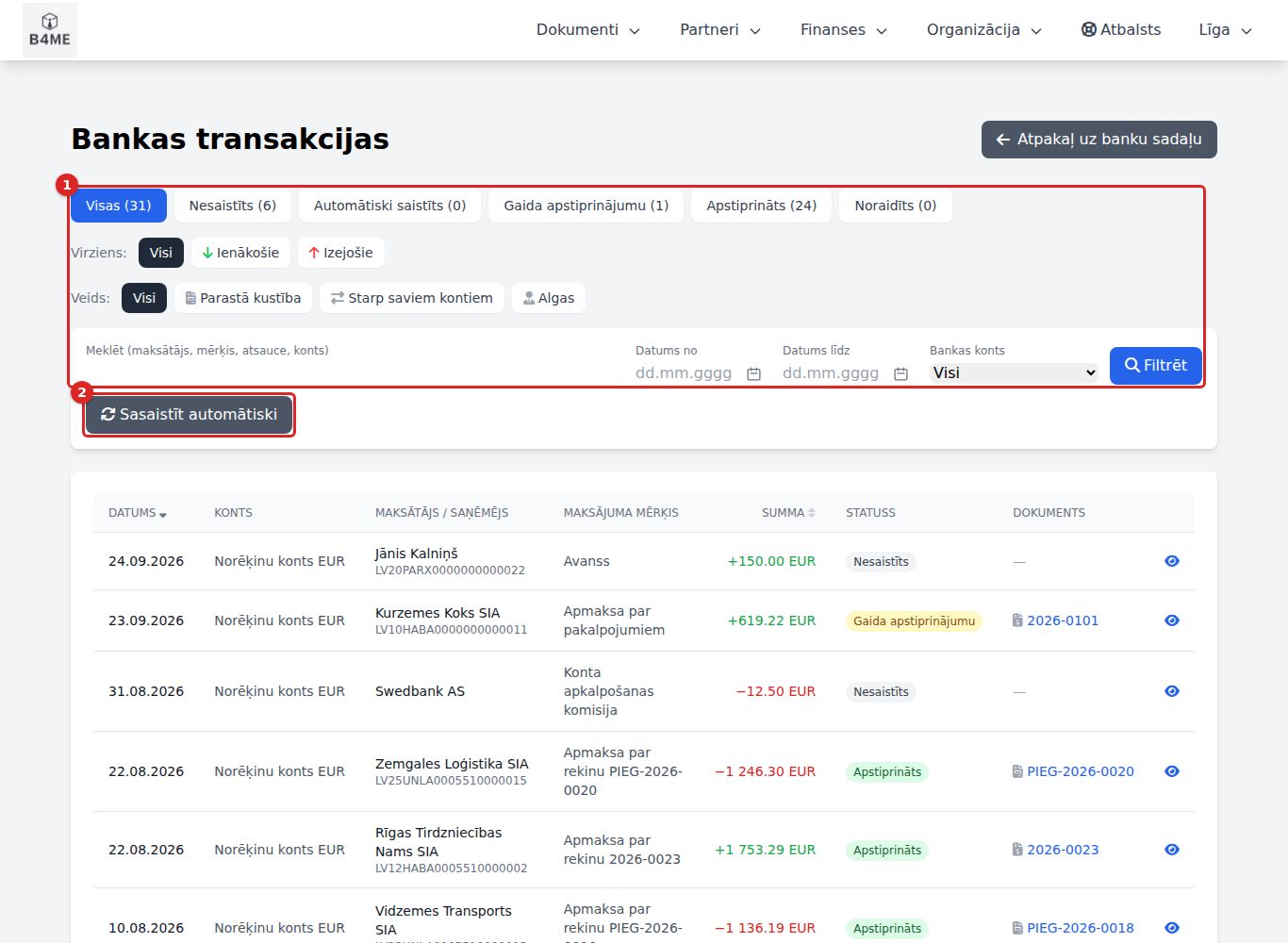
Finanses → Transakcijas (Finance → Transactions) (or Gaida apstiprinājumu — the same list, filtered by status).
Bank transactions
Tabs ① by status, direction (Ienākošie (Incoming) / Izejošie (Outgoing)) and type (Parastā kustība (Ordinary movement), Starp saviem kontiem (Between own accounts), Algas (Salaries)); search and dates → Filtrēt (Filter).
The column Dokuments (Document) shows what the transaction is matched with: an invoice, an incoming document, an own account or an employee.
Sasaistīt automātiski (Match automatically) ② — runs matching again for all unmatched transactions (for example, after you have entered a missing invoice).
How the system matches automatically
After every import and bank synchronisation:
incoming payments — with your invoices by the invoice number in the payment reference, by the subscriber number or by the order number (if the order has no invoice yet and Rēķinu iestatījumi (Invoice settings) has Automātiski izrakstīt rēķinu, kad pasūtījums apmaksāts switched on, an invoice dated by the payment is issued and paid by itself — see Orders);
outgoing payments — with incoming documents by the document number or by supplier and amount;
payments to an employee's account with the word "alga" (salary) — with a payroll calculation;
transfers between own accounts — with each other (they are not posted as income or expenses).
If the match is certain — status Automātiski saistīts (Matched automatically), and the payment is already registered on the document. If doubtful — Gaida apstiprinājumu.
Status
Meaning
What to do
Nesaistīts (Unmatched)
the system found no document
open and match by hand or confirm without an invoice
Automātiski saistīts
the payment is already registered
nothing
Gaida apstiprinājumu
there is a suggestion
check → Apstiprināt sasaisti (Confirm match) or Noraidīt (Reject)
Apstiprināts (Confirmed)
confirmed by a person
nothing
Noraidīts (Rejected)
the match was rejected
—
A confirmed or rejected match cannot be undone. Before Apstiprināt (Confirm), check the amount and the document.
Transaction card
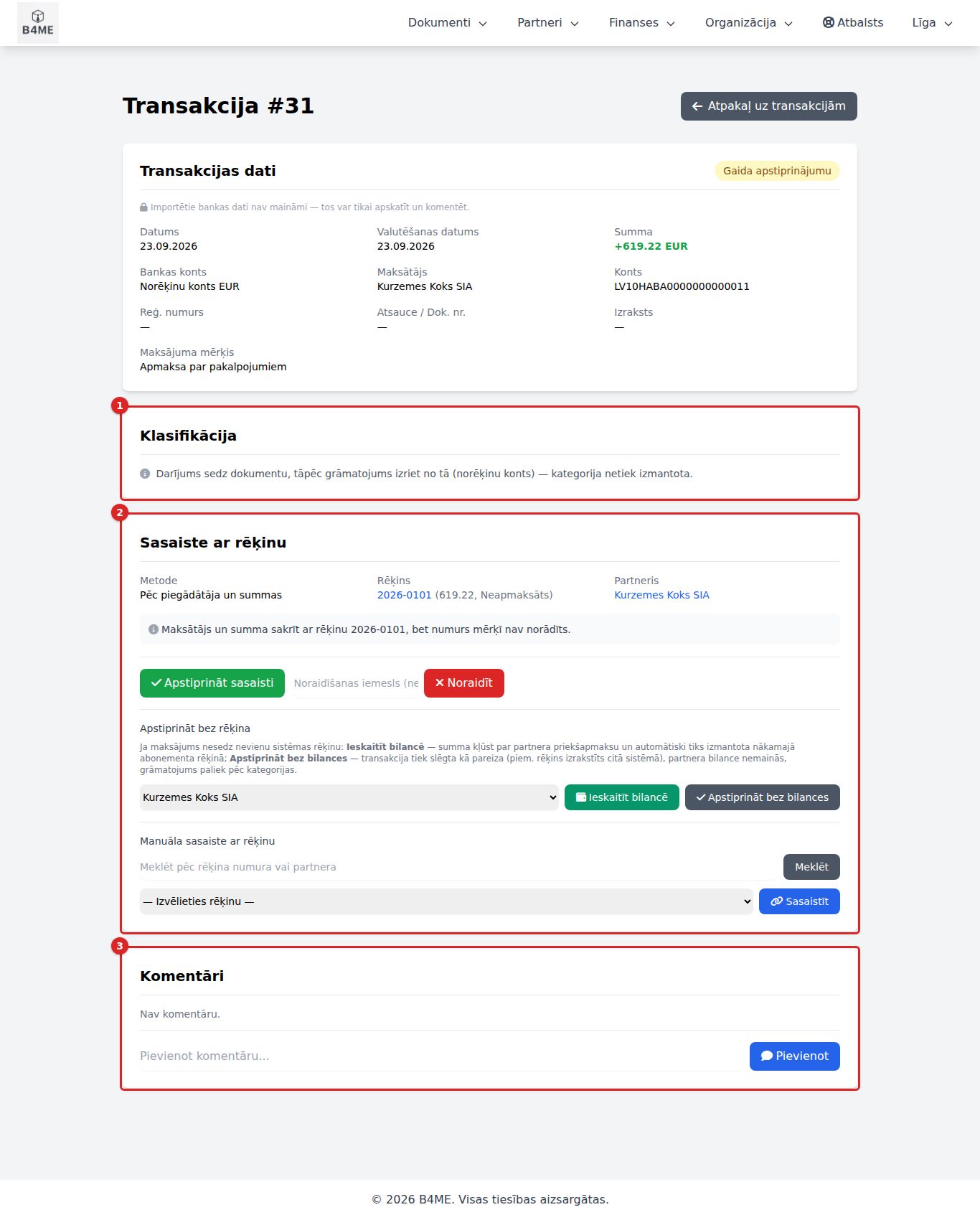
Imported bank data cannot be changed or deleted — only viewed, matched and commented on.
Transaction card
For an incoming payment (block Sasaiste ar rēķinu (Match with invoice)) ②:
Apstiprināt sasaisti — if the system suggests an invoice;
Manuāla sasaiste ar rēķinu (Manual match with invoice) — Meklēt (Search) by number or partner, select an unpaid invoice → Sasaistīt (Match);
Izrakstīt rēķinu no pasūtījuma (Issue an invoice from the order) — when an order was found in the payment reference (block Pasūtījums (Order)) but no invoice was issued automatically (partial payment, another payer, setting off): an invoice from the order dated by the payment, and the payment is registered on it;
Apstiprināt bez rēķina (Confirm without invoice): select the partner → Ieskaitīt bilancē (Credit to balance) (a prepayment, to be credited against the next subscription invoice) or Apstiprināt bez bilances (Confirm without balance);
Noraidīt (with a reason).
For an outgoing payment:
Apstiprināt sasaisti with the suggested incoming document;
Šī ir alga darbiniekam (This is an employee's salary) → Darbinieks (Employee) → Sasaistīt ar darbinieku (Match with employee); then Aprēķina rinda, ko dzēš (Calculation row being settled) → Apstiprināt kā algu (Confirm as salary) (or Nav alga (Not a salary)). If the employee card is incomplete — Aizpildīt darbinieka kartīti (Fill in the employee card);
an incoming document the system did not suggest is matched from the incoming document form (field Piesaistīt apmaksu (Attach payment)).
Klasifikācija (Classification) ① — for a transaction without a document specify the category (Ieņēmumi (Income), Izdevumi (Expenses), Pamatkapitāla ieguldījums (Share capital contribution), Aizņēmums (Loan), PVN (VID vienotais konts) (VAT (VID single tax account)), Pārējie nodokļi (Other taxes), Algas) → Saglabāt (Save); the journal entry is recalculated.
Komentāri (Comments) ③ — Pievienot (Add); comments can be added even in a closed period.
Partner balances
Finanses → Partneru bilances (Finance → Partner balances): totals Priekšapmaksas (Prepayments) (partners have paid more or in advance) and Parādi (Debts) (overdue subscription invoices). In a partner's balance — every entry: Priekšapmaksa / pārmaksa (Prepayment / overpayment), Ieskaitīts rēķinā (Credited against invoice), Kavēts abonementa rēķins (Overdue subscription invoice), Parāds apmaksāts (Debt paid). The balance is changed only by the system (bank matching, subscription invoices) — it cannot be edited by hand.
Connected banks
Finanses → Pieslēgtās bankas → Pieslēgt banku (Finance → Connected banks → Connect bank) → choose the bank → authorise at the bank in a new window → "Banka pieslēgta!" (Bank connected!). Transactions are loaded in the background and afterwards every day at 07:00 and 16:00; right away — Sinhronizēt (Synchronise). Access to the bank is temporary (usually 90 days) — when the status is Piekļuve beigusies (Access expired), connect the bank again. Atslēgt (Disconnect) — the transactions already loaded remain.
Accounting
Double-entry bookkeeping. Most journal entries are not entered by anyone by hand — they arise from documents:
Document
Journal entry
Issued invoice
Dr 2310 / Cr 6110 (net) / Cr 5721 (VAT); credit note — with a minus; contractual penalty — Cr 6260
Incoming document
Dr 7110 / Dr 2380 (deductible VAT) / Cr 5310
Bank transaction
Dr or Cr 2620 against 2310, 5310, 5210, 5720 … (by matching or category)
Approved payroll calculation
Dr 7210 / Cr 5210 / Cr 5722
Fixed asset depreciation
Dr 7420 / Cr 1240
Proforma invoices and drafts are not posted. When a document is edited, its journal entry is created anew.
Journal entries
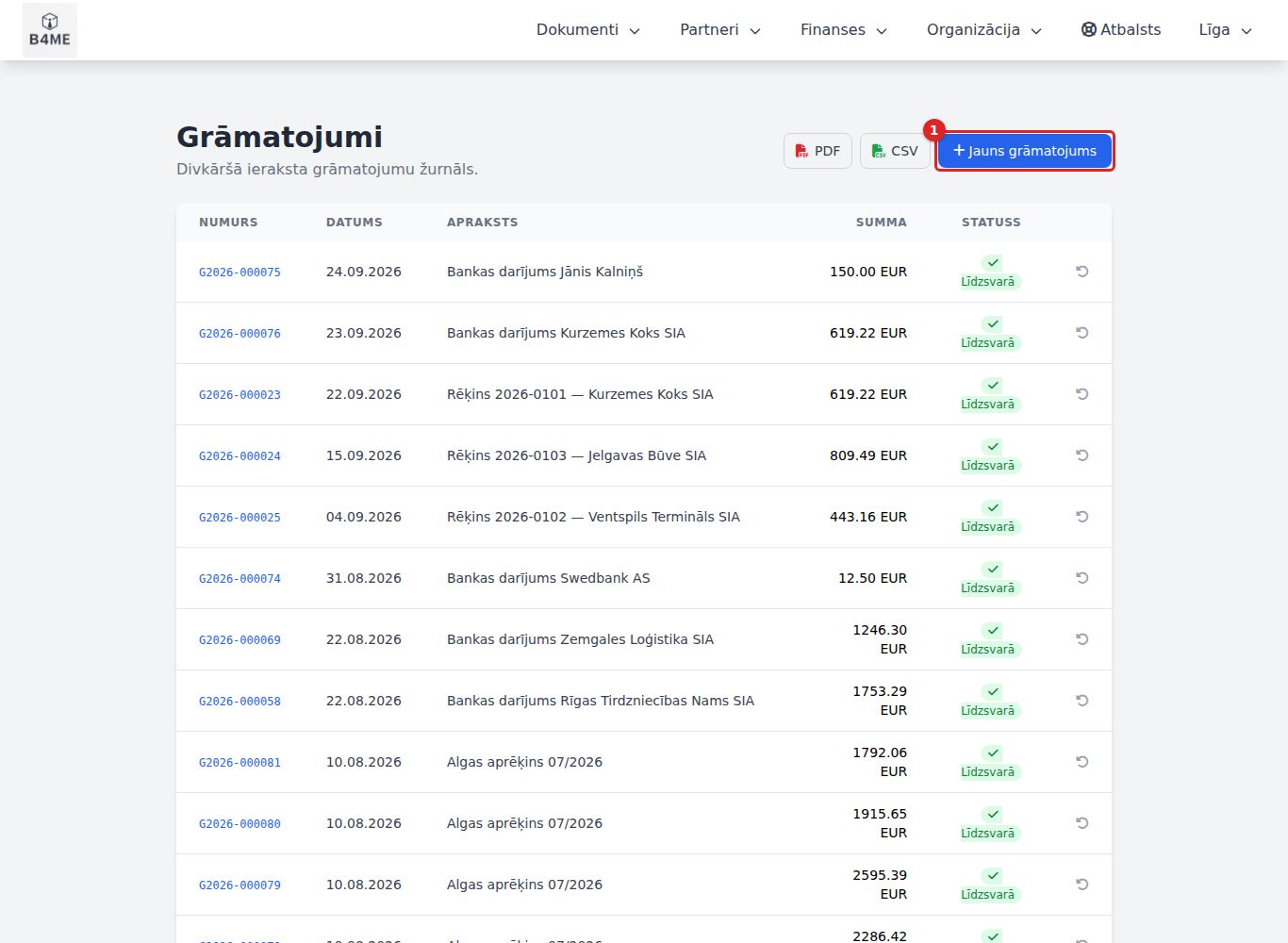
Finanses → Grāmatojumi (Finance → Journal entries) — the journal: Numurs (Number) (for example G2026-000123, assigned in order of registration), Datums (Date), Apraksts (Description), Summa (Amount), status Līdzsvarā (Balanced) / Nelīdzsvarots (Unbalanced) / Stornēts (Reversed) / Storno (Reversal). PDF and CSV — a printout of the journal.
Journal
New journal entry
Only for what has no document (for example, accruals, adjustments). Jauns grāmatojums (New journal entry) ① → Datums, Apraksts, rows Konts (Account) / Debets (Debit) / Kredīts (Credit) (Pievienot rindu (Add row)) → Saglabāt grāmatojumu (Save journal entry) (the button is active when debit = credit).
Correcting an error — reversal
Journal entries are not deleted. Open the entry → Stornēt grāmatojumu (Reverse journal entry) → Iemesls (Reason) → Stornēt (Reverse). An opposite entry is created; the original remains in the journal marked Stornēts. If the original's period is closed, the reversal is dated on the first open day. Then correct the document — on saving it will be posted anew.
The journal entry card also shows the Attaisnojuma dokuments (Source document) — a link to the invoice or other source.
Period closing
Finanses → Perioda slēgšana (Finance → Period closing): Slēgt uz datumu (Close as of date) (usually 31.12) → Pārrēķināt (Recalculate) → the profit or loss is shown → Slēgt periodu uz … (Close period as of …). The balances of the income and expense accounts are transferred to retained earnings (3400). With the tick Aizliegt datu izmaiņas līdz … (Prohibit data changes until …) the data lock is set at the same time. Closing can be repeated — the result is not doubled.
Closed periods
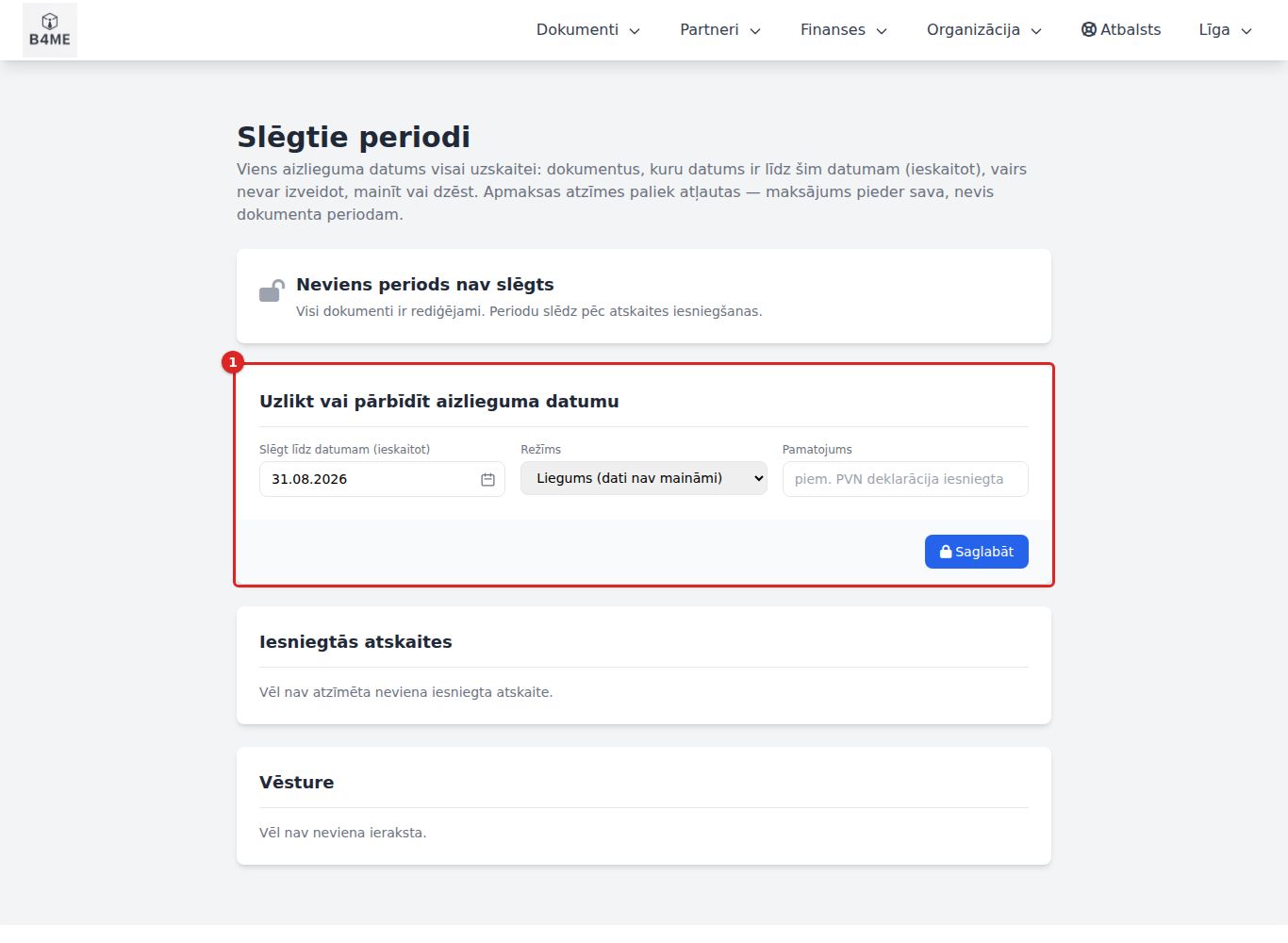
Finanses → Slēgtie periodi (Finance → Closed periods) — one lock date for all the accounts: documents dated up to and including this date can no longer be created, changed or deleted.
Closed periods
Slēgt līdz datumam (ieskaitot) (Close until date (inclusive)) ①, Režīms (Mode): Liegums (dati nav maināmi) (Lock (data cannot be changed)) or Brīdinājums (izmaiņas atļautas) (Warning (changes allowed)), Pamatojums (Reason) (for example, "PVN deklarācija iesniegta" — VAT return filed) → Saglabāt (Save).
Moving the date back or Atvērt visus periodus (Open all periods) requires a separate permission; the reason is kept in the Vēsture (History).
Iesniegtās atskaites (Filed reports) — who filed what, when and which version.
The date is also set by the EDS XML Atzīmēt kā iesniegtu (Mark as filed), VAT posting and period closing — but only if you tick the respective box. Without your action the period is not closed.
What is in a closed period
What can still be done
Issued invoices
register payment, edit the comment
Incoming documents
change status, payment, bank matching
Bank transactions
comment only — matching and classifying is not possible
Journal entries
reverse (the reversal is dated in the open period)
Payroll reports
mark payment
If a statement for a closed month arrives late, its transactions are imported but are not matched with invoices until the period is opened.
Chart of accounts
Finanses → Kontu plāns (Finance → Chart of accounts) — accounts by type (Aktīvs (Asset), Pasīvs (Liability), Pašu kapitāls (Equity), Ieņēmumi (Income), Izmaksas (Expenses)). To add: Konta kods (Account code), Nosaukums (Name), Veids (Type) → Pievienot (Add). An account with journal entries cannot be deleted. Automatic entries use accounts 2310, 2380, 2620, 3400, 5210, 5310, 5720, 5721, 5722, 6110, 7110, 7210, 7500 — do not delete them.
Accounting takeover
Before the first report the system asks once "no kurienes nāk uzskaite?" (where do the accounts come from?):
Jauna firma (New company) → Jā, visa uzskaite ir šeit — turpināt (Yes, all the accounts are here — continue);
Uzskaite bija citā programmā (The accounts were in another program) → opening balances must be entered.
Pēdējā slēgtā perioda beigu datums (End date of the last closed period), Iepriekšējā sistēma (Previous system).
Atlikumi pa kontiem (Balances by account) — enter Debets / Kredīts or Ielīmēt atlikumus no vecās sistēmas (Paste balances from the old system) (konts;debets;kredīts on each line) → Importēt (Import) → Saglabāt melnrakstu (Save draft).
Iegrāmatot sākuma atlikumus (Post opening balances). After that, documents with an earlier date are no longer posted (they can be entered for the history). In case of an error — Atcelt iegrāmatošanu (Cancel posting), correct and post again.
Until the takeover is posted, accounting reports are not available.
Accounting reports
All are calculated from the journal entries at the moment of opening; each has PDF and CSV.
Report
What it shows
Apgrozījuma pārskats (Trial balance)
each account's opening balance, turnover and closing balance; at the bottom — whether debit matches credit
Bilance (Balance sheet)
assets against liabilities as of a date; "Bilance sakrīt" (Balance sheet balances) or a warning
Peļņas/zaudējumu aprēķins (Profit and loss statement)
income, expenses, result for the period
Virsgrāmata (General ledger)
all journal entries of one account with the balance after each
Gada pārskats (Annual report)
balance sheet as of 31.12. and P&L for the year (PDF, XML — the XML is not the official EDS file)
Fixed assets
Menu Finanses → Pamatlīdzekļi (Finance → Fixed assets): fixed assets, low-value inventory and intangible assets — the card, monthly depreciation (posted) and the yearly tax depreciation (register only, not posted).
Incoming invoice (purchase, Dr 1210)
→
Card → Put into service
→
Depreciation every month
→
Remove from the books
Cards
Finanses → Visas kartītes (Finance → All cards) — Inv. Nr. (Inv. No.), Nosaukums (Name), Veids / grupa (Type / group), Struktūrvienība (Structural unit), Iegādes vērtība (Acquisition value), Uzkrātais (Accumulated), Bilances vērtība (Book value), Statuss (Status) (Lietošanā (In use) / Nav nodots ekspluatācijā (Not put into service) / Izslēgts (Removed)). At the top — totals.
New card
Jauna kartīte (New card):
Inventāra numurs (Inventory number) (the next one is suggested), Nosaukums (Name), Veids (Type) (Fixed asset / Low-value inventory / Intangible asset), Grupa (Group) — it fills in the accounts, the tax category and the useful life.
Kompānija (Company), Struktūrvienība (Structural unit), Materiāli atbildīgā persona (Person materially responsible), Atrašanās vieta (Location).
Iegādes datums (Acquisition date), Iegādes vērtība bez PVN (Acquisition value excl. VAT), Saņemtais rēķins (Received invoice) — the purchase is posted by the invoice, the card only refers to it.
Nodots ekspluatācijā (Put into service) — depreciation starts from the next month (may be left empty and done later). For low-value inventory the value is written off to expenses immediately.
Metode (Method) (Straight-line / Declining balance / Not calculated), Lietderīgās lietošanas laiks, mēneši (Useful life, months), Likvidācijas vērtība (Residual value); when taking over from another system — Uzkrātais nolietojums pārņemot (Accumulated depreciation at takeover).
Nodokļu nolietojums (Tax depreciation) — only for IK (sole traders) and the self-employed (an SIA (Ltd) leaves it empty).
Saglabāt (Save).
Once a card has depreciation or a journal entry, the values, dates and accounts can no longer be changed — an error is corrected with a reversal and a new card.
Card actions
Nodot ekspluatācijā (Put into service) — Datums (Date) → Nodot (Put into service).
Izslēgt no uzskaites (Remove from the books) — Datums, Iemesls (Reason) (Sold, Written off, Lost / stolen, Transferred), Pārdošanas cena (Sale price) → Izslēgt (Remove); the remaining value is written off to expenses. The sale revenue is posted by the sales invoice.
Nolietojuma rindas (Depreciation lines) — the amount for each month.
Depreciation run
Finanses → Nolietojuma aprēķins (Finance → Depreciation run). Months are calculated in sequence: the first time, choose the starting month; after that the next one is suggested.
Priekšskatīt (Preview) — a table with each asset's monthly depreciation and accounts.
Aprēķināt un iegrāmatot MM/GGGG (Calculate and post MM/YYYY) — one journal entry dated the last day of the month (Dr expense account / Cr depreciation account).
Only the last run can be cancelled: open it → Atcelt aprēķinu (Cancel run) (with a reason) — the journal entry is reversed, and the month can be calculated again. Depreciation is not calculated for a future month.
Tax depreciation
The yearly register under section 11.⁵ of the PIT (IIN) law (only for IK (sole traders) and the self-employed, for fixed assets above 1000 EUR): Taksācijas gads (Tax year) → Rādīt (Show) → Saglabāt … gada reģistru (Save the … year register). Nothing is posted in accounting. The last year can be Dzēst un pārrēķināt (Delete and recalculate).
Settings
The tax depreciation method for all fixed assets (in percent or years; may be changed no more than once every 10 years), Pamatlīdzekļa slieksnis, EUR (Fixed asset threshold, EUR), default accounts → Saglabāt (Save).
Reports and VAT
Menu Finanses → Atskaites (Finance → Reports). These reports are calculated from documents (issued invoices and incoming documents), not from journal entries, so they are indicative. For the exact accounting statements see the chapter Accounting.
Period ② — Gads (Year) + Mēnesis (Month) or Ceturksnis (Quarter), or No (From) / Līdz (To). Default — the previous month.
Ģenerēt (Generate); for printing — Drukāt (Print), CSV, PDF③.
Dates: issued invoices — by invoice date; incoming — by receipt date (if none — by invoice date). Proformas and drafts are not included.
VAT return and EDS
Row numbers match the EDS (VID e-filing system) form; "—" means the system does not fill in that row (you fill it in yourself in EDS). Below the table — warnings about skipped documents (for example, an EU supply without the VAT 2 flag).
Procedure:
Check the PVN darījuma veids (VAT transaction type) of incoming documents and the PVN 2 pazīme (VAT 2 flag) of EU invoices.
Generate the return, read the warnings and the block Salīdzinājums ar grāmatvedību (Comparison with accounting).
EDS XML — the file for uploading to EDS ("Dokumenti → Izveidot no faila" (Documents → Create from file)); it has been validated against the VID (State Revenue Service) schema. While you are still preparing the return, leave the checkbox unticked.
After submitting in EDS, download the file once more with the checkbox Atzīmēt kā iesniegtu un slēgt periodu līdz … (Mark as submitted and close the period until …) — the system saves the submitted version and closes the period.
Grāmatot PVN aprēķinu (Post the VAT settlement) — the VAT from 5721/2380 is transferred to the VID single tax account 5720 (repeating it replaces the previous journal entry).
The deadline is the 20th of the following month. An error after submission is corrected with a credit invoice or a reversal in an open period, and a new version is submitted.
If the company is not a VAT payer, the page shows the PVN reģistrācijas slieksnis (VAT registration threshold): turnover against 50 000 EUR per year.
Saglabāt šo pārskatu kā (Save this report as) — saves the selected type and period so that it can be quickly opened again.
Cash flow and profit
No (From) / Līdz (To) → the indicators Ieņēmumi (bez PVN) (Income (excl. VAT)), Izdevumi (bez PVN) (Expenses (excl. VAT)), Peļņa / zaudējumi (Profit / loss), Peļņas norma (Profit margin), a chart by month and the VAT position (output VAT, input VAT, payable or refundable). Calculated by document dates, not by actual payments.
Tax calendar
VID (State Revenue Service) deadlines for the next 12 months (VAT return — 20th, employer's report — 17th, micro-enterprise tax, annual report, etc.). Atgādināt (Remind) creates a reminder 3 days before the deadline — it is shown in the block Mani atgādinājumi (My reminders) and on the dashboard (no e-mail or message is sent). The deadlines are indicative.
Taxpayer rating
An explanation of the VID rating system: what each letter means, where to see your rating and what affects it.
Employees and payroll
Menu Organizācija → Darbinieki (Organisation → Employees). The path: employee card → monthly payroll calculation → approval (journal entry) → payment from the bank (matched automatically) → VID (State Revenue Service) reports.
Employee card + tax attributes
→
Payroll period — Calculate
→
Approve → accounting
→
Bank payment "alga" → Paid out
→
EDS — DDZ, ZDN
Employees
Organizācija → Visi darbinieki / Jauns darbinieks (Organisation → All employees / New employee).
Employee list
On the card:
Personiskā informācija (Personal information): Vārds (First name), Uzvārds (Surname), Personas kods (Personal ID number) (needed for VID reports and salary matching).
Darba informācija (Employment information): Kompānija (Company), Amats (Position), Struktūrvienība (Structural unit), Pieņemšanas datums (Hire date), Nodarbinātības veids (Employment type), Statuss (Status) (Aktīvs (Active), Neaktīvs (Inactive), Atvaļinājumā (On leave), Atlaists (Dismissed)).
Algas informācija (Salary information): Alga (bruto) (Salary (gross)) (monthly salary or hourly/daily rate), Maksājuma veids (Payment type) (Mēneša alga (Monthly salary), Stundas likme (Hourly rate), Dienas likme (Daily rate), Summētais darba laiks (Aggregated working time), Gabaldarbs (Piecework)), Bankas konts (IBAN) (Bank account (IBAN)) — this is how the salary payment is recognised in the bank; Slodze (Workload), Stundas nedēļā (Hours per week), bonus %.
Nodokļu pazīmes (Tax attributes) (at the bottom of the edit page): Spēkā no (Valid from), Apgādājamie (Dependants), Invaliditāte (Disability), Algas nodokļa grāmatiņa iesniegta (Salary tax book submitted), pensioner attributes → Saglabāt pazīmes (Save attributes). Without the attributes the calculation applies neither the non-taxable minimum nor the allowances. After changes, recalculate the payroll period.
The system posts a salary payment in the bank only if the card has a personal ID number, an IBAN and tax attributes. Until then, the bank transaction shows "Algu nevar grāmatot — darbinieka kartīte nav pilna." (Salary cannot be posted — the employee card is incomplete.)
Payroll calculation
Organizācija → Algu aprēķins (Organisation → Payroll calculation). One period = one month.
Payroll period
Jauns periods (New period): Gads (Year), Mēnesis (Month) → Izveidot (Create).
Aprēķināt (Calculate) ① — for each employee: days, salary, sick pay, vacation, gross, VSAOI, IIN, Uz rokas (Net pay). The calculation can be repeated (Pārrēķināt (Recalculate)) until the period is approved.
Izklāsts (Breakdown) ② — one employee's calculation step by step (working time, average earnings, taxes); Algas lapa PDF (Payslip PDF).
Piemaksas un ieturējumi (Bonuses and deductions) — Veids (Type) (bonus with or without taxes, deduction before PIT (IIN) or from the payable amount), Summa (Amount), Apraksts (Description) → Pievienot (Add), then recalculate.
Izmaksas datums (Payment date) + Apstiprināt (Approve) ③ — the amounts go into accounting (Dr 7210 / Cr 5210 / Cr 5722).
Pay the salaries from the bank to the employee's IBAN with the word "alga" in the payment details — after the statement import the payment is matched automatically, and the period becomes Izmaksāts (Paid out). Maksājumu saraksts (Payment list) — a PDF with IBANs for the bank.
Darba devēja ziņojums (Employer's report) — XML for uploading to EDS (VID e-filing system).
Status
What you can do
Melnraksts (Draft) / Aprēķināts (Calculated)
recalculate, bonuses, approve
Apstiprināts (Approved)
posted; Atvērt labošanai (Open for editing) returns it to editing
Izmaksāts
all lines paid from the bank
Sick pay: day 1 is not paid, days 2–3 — 75 %, from day 4 — 80 % of average earnings.
Timesheet
Organizācija → Darba laika tabele (Organisation → Timesheet): Darbinieks (Employee), Gads (Year), Mēnesis (Month) → Rādīt (Show). The timesheet is optional — without it the calendar norm minus absences is used. If the month has entries, they take precedence, and only this way can night, overtime and public holiday hours be paid. Aizpildīt normu (Fill in the norm), correct the days → Saglabāt tabeli (Save timesheet) → recalculate the period.
Employee notices
No (From) / Līdz (To) → Meklēt izmaiņas (Find changes) — employees hired in the period with the notice code and the profession code (mandatory for first-time registration) → EDS XML (for uploading to EDS: Dokumenti → Izveidot no faila (Documents → Create from file)). The start of employment must be reported at least an hour before work begins.
Piecework
Darbu katalogs (Job catalogue) — Nosaukums (Name), Mērvienība (Unit), Izcenojums (Rate) → Pievienot (Add). Izpildes uzskaite (Completion records) — Darbinieks (Employee), Darbs (Job), Datums (Date), Daudzums (Quantity) → Pievienot; then recalculate the period. For employees with the payment type Gabaldarbs (Piecework) the system automatically tops up to the minimum wage.
EDS import
From EDS (VID e-filing system) download the XML files "Iesniegto algas nodokļa grāmatiņu dati" (Submitted salary tax book data) and "Darbinieku darbnespējas lapu dati" (Employee sick leave certificate data) and upload them → Importēt (Import). Matching is by personal ID number; unrecognised ones appear in the list. A repeated import does not duplicate data. Then recalculate the period.
Tax rates
View only: PIT (IIN), social contributions (VSAOI), the non-taxable minimum, allowances and the minimum wage by date, as well as the work calendar with public holidays. The calculation always takes the rates that were in force in the given month.
Company, structural units, tasks
Company
Organizācija → Pārvaldīt kompānijas (Organisation → Manage companies) — your company's details (the company that issues the invoices): Nosaukums (Name) (without the legal form), Juridiskā forma (Legal form), Reģistrācijas numurs (Registration number), PVN numurs (VAT number) (LV + 11 digits), address, contacts, Bankas rekvizīti (Bank details), PEPPOL informācija (PEPPOL information). This data goes into new invoices, contracts and e-invoice XML.
Currently the portal can hold only one company.
Structural units
Organizācija → Visas struktūrvienības / Jauna struktūrvienība (Organisation → All structural units / New structural unit): Kompānija (Company), Pakārtota vienībai (Subordinate to unit), Nosaukums (Name), Kods (Code), Veids (Type), Vadītājs (Manager), address.
VID reģistrējamie veidi (Types registrable with VID) — office, shop, warehouse, production site, service location, website… They must be registered in VID (State Revenue Service) EDS (VID e-filing system) within 10 days; until Reģistrēta VID (Registered with VID) is ticked on the card, a yellow warning is shown there.
UR veidi (Enterprise Register (UR) types) — branch, representative office.
Iekšējās (Internal) — department, sector, workshop, group, project (not registered with VID).
The card shows the subordinate units, employees and fixed assets. A unit with subordinate units or employees cannot be deleted.
Tasks
Organizācija → Visi uzdevumi / Jauns uzdevums (Organisation → All tasks / New task).
Tasks
Nosaukums (Title), Apraksts (Description), Izpildītājs (Assignee), Izpildes termiņš (Due date).
Atgādinājumi (Reminders) — date and time (without a time — 09:00) → Pievienot atgādinājumu (Add reminder).
Kontrolsaraksts (Checklist) — items to tick off while the task is in progress.
The assignee receives a notification about the assigned task and about changes (the channels are set in Konfigurācija → Paziņojumi (Configuration → Notifications)); reminders are sent at the specified time. On the task card: ticking off the checklist, Diskusija (Discussion) (comments). Tasks are visible to everyone who has permission for the task list.
The AI assistant creates, finds and changes tasks and reminders: "Remind me tomorrow at 10:00 to call the accountant", "Which of my tasks are still open?", "Mark the task as done". See AI assistant.
Users, roles and audit
Menu Konfigurācija → Pārvaldība (Configuration → Management). Permissions are given to a user only by roles: a user is allowed everything that at least one of their roles allows. Permissions cannot be assigned to a user directly.
Invitation or request
→
User with a role
→
Permissions from the role
→
Menus and pages
New user: invitation
Konfigurācija → Lietotāju ielūgumi (Configuration → User invitations) (also the button Uzaicināt lietotāju (Invite user) in the user list).
User invitations
E-pasts (nav obligāts) (E-mail (optional)) ① — if given, the link will only work for this address.
Loma (Role) ② — assigned immediately after registration. "— bez lomas —" (— no role —) means the user will only be able to open their own profile.
Izveidot saiti (Create link) ③ → Jaunā ielūguma saite (New invitation link) appears with the button Kopēt (Copy).
Send the link yourself (by e-mail, message) — the system does not send it. The link is valid for 60 minutes and once; after the page is reloaded it is no longer shown.
The invitee opens the link, enters Vārds (Name), e-mail, password (at least 12 characters), accepts the terms and presses Reģistrēties (Register) — and is signed in.
Status
Meaning
Aktīvs (Active)
the link is still valid; it can be Atsaukt (Revoke)
Izmantots (Used)
the account has been created (the user's name is shown)
Beidzies termiņš (Expired)
60 minutes have passed — create a new one
Atsaukts (Revoked)
the link has been revoked
New user: registration request
If registration is Atvērta (Open) in Sistēmas iestatījumi (System settings), the person fills in the form at /register themselves and confirms their e-mail with a code. The account is not created yet — the request goes to Konfigurācija → Reģistrācijas pieteikumi (Configuration → Registration requests) (tabs Gaida (Pending) / Apstiprinātie (Approved) / Noraidītie (Rejected)).
Apstiprināt (Approve) (choose a role) → the account is created with the applicant's password: "Lietotājs X izveidots." (User X created.)
No e-mail about the decision is sent to the applicant — tell them yourself.
User management
Konfigurācija → Lietotāju pārvaldība (Configuration → User management): a list with name, e-mail and roles.
Rediģēt lomas/atļaujas (Edit roles/permissions) — tick the roles → Saglabāt (Save). The new permissions take effect immediately; the menu may update with a delay of up to 5 minutes.
The user's card shows the full list of permissions the user inherits from roles.
Dzēst lietotāju (Delete user) — you cannot delete yourself or (unless you are a superuser) a superuser.
The administrator cannot change a name, e-mail or password; the user resets the password themselves with Aizmirsāt paroli? (Forgot your password?)
Roles and permissions
Konfigurācija → Lomas un atļaujas (Configuration → Roles and permissions) → Izveidot jaunu lomu (Create new role) or the role's Rediģēt (Edit).
Editing a role
Lomas nosaukums (Role name) ①, Apraksts (Description).
Permissions ② are grouped by section; each checkbox is one action, for example invoices.index — the invoice list, invoices.create — a new invoice, invoices.edit — editing, invoices.destroy — deletion. For a group: Izvēlēties visas (Select all) / Noņemt visas (Deselect all).
At the end of the page — Atjaunināt lomu (Update role) / Izveidot lomu (Create role).
The list shows only the sections available to your company.
Superuser is a special role — it can do everything. Do not rename it and do not assign it unnecessarily.
Audit log
Konfigurācija → Audita žurnāls (Configuration → Audit log) shows every creation, edit, deletion and restore. Filters: Darbība (Action), Objekta tips (Object type), Lietotājs (User), Ieraksta ID (Record ID), No datuma (From date) / Līdz datumam (To date) → Filtrēt (Filter). Skatīt (View) opens the record with a table Bija / Kļuva (Before / After) for each changed field. The log cannot be edited or deleted.
Login attempts
Konfigurācija → Pieteikšanās mēģinājumi (Configuration → Login attempts) — by default Neveiksmīgie (Failed): which e-mail, from which IP, why it failed ("Nepareiza parole" (Wrong password), "Otrais faktors neizdevās" (Second factor failed) …). An icon indicates whether the browser is new for this account. At the top — addresses that have tried to sign in to several portals in the last 7 days. Records are kept for 90 days.
Settings and notifications
Configuration: numbering and defaults
Konfigurācija → Konfigurācija (Configuration → Configuration) — the list of settings; Rediģēt (Edit) opens one. Pievienot konfigurāciju (Add configuration) offers those not yet created.
Dokumentu numerācija (Document numbering) (for invoices, orders, transport orders, etc.):
Formāts (Format) — built from the placeholder buttons (year, month, number…), Prefikss (Prefix), Ciparu skaits (nulles) (Number of digits (zeros)), Sākuma numurs (Starting number);
Numuru atiestatīt (Reset the number): Nekad (nepārtraukti) (Never (continuous)) / Katru gadu (Every year) / Katru mēnesi (Every month);
Piemērs (nākamais numurs) (Example (next number)) shows what the next number will be → Saglabāt (Save).
For invoices additionally: the default payment method and term in days, VAT for EU customers (0 % reverse charge), the PDF file name, Komentārs jaunam rēķinam (Comment for a new invoice) for each document language and — if you use the bank section — Automātiski izrakstīt rēķinu, kad pasūtījums apmaksāts (an invoice dated by the payment when the customer pays an order with its number in the payment reference).
Atgādinājumi par apmaksu (Payment reminders; in the invoice settings): switch on Sūtīt atgādinājumus par rēķinu apmaksu (Send invoice payment reminders) and set how many days before and after the due date to remind (0 — do not send that reminder). The client receives the same invoice (PDF) by e-mail with a polite letter in their document language; the text can be rewritten for each language (placeholders — invoice number, date, due date, amount…). The check runs every morning at 09:00, only for unpaid invoices, and each reminder goes out at most once per invoice. The E-pasts (E-mail) feature is required. For subscription invoices the subscription plan decides the reminders (see Periodiskie rēķini un abonementi).
Telegram paziņojumi (Telegram notifications): Izmantot sistēmas botu (@b4meTgBot) (Use the system bot (@b4meTgBot)) or your own bot token, the administrator's Chat ID (for a group it starts with -100…), Ieslēgt Telegram paziņojumus (Enable Telegram notifications), Pārbaudīt savienojumu (Test connection). The bot must first be given Start, or the bot must be added to the group.
Notifications
Konfigurācija → Paziņojumi (Configuration → Notifications) — which events are reported to whom and how: Uzdevums piešķirts (Task assigned), Ienākošs bankas darījums (Incoming bank transaction), Saņemts ienākošais dokuments (Incoming document received), Nokavēts izejošais rēķins (Overdue outgoing invoice), Sasniegts minimālais atlikums (Minimum stock reached), Reģistrējies jauns lietotājs (New user registered), Noraidīts pieteikšanās mēģinājums (Login attempt rejected), etc.
For each event: an enable checkbox, Kanāli (Channels) (Telegram / E-mail / Mobile app) and Portāla lietotāji (Portal users) → Saglabāt (Save).
If no recipient is specified, the Telegram message goes to the administrator's chat, the e-mail — to the company address.
An overdue invoice is reported once — every day at 08:00 for those that became overdue in the last 7 days.
System settings
Konfigurācija → Sistēmas iestatījumi (Configuration → System settings) → Saglabāt iestatījumus (Save settings).
Sūtītāja vārds (e-pastiem) (Sender name (for e-mails)) — the name under which partners receive your e-mails (empty = the company name).
Lietotāju reģistrācija (User registration): Slēgta — tikai pēc ielūguma (ieteicams) (Closed — by invitation only (recommended)) or Atvērta — reģistrēties var ikviens (Open — anyone can register) (then new requests must be approved in Reģistrācijas pieteikumi (Registration requests)).
SEO iestatījumi (SEO settings) for your website: meta title, description, keywords, Robots.txt saturs (Robots.txt content).
Sistēmas fīčas (System features) — AI assistant, E-mail, Pages, etc.: status, Pārvaldīt fīčas (Manage features) (switch already granted ones on or off) and Pieprasīt fīču (Request feature) (the request is approved by B4ME).
Website (Pages)
Menu Konfigurācija → Lapas (Configuration → Pages) — your public website https://<uzņēmums>.b4me.lv/.
Page manager
A list of pages: Nosaukums (Name) (the home page has the badge Sākumlapa (Home page)), Saite (Link) (/ or /slug), Statuss (Status), Izvēlnē (In menu).
Pievienot lapu (Add page) → Dizaina makets (Design layout) (or "— Tukša lapa (bez maketa) —" (— Blank page (no layout) —)), Nosaukums, Saite (slug) (Link (slug)) (empty = from the name), Aktīva (redzama apmeklētājiem) (Active (visible to visitors)), Sākumlapa, Rādīt navigācijas izvēlnē (Show in navigation menu), SEO fields and Koplietošanas attēls (OG) (Sharing image (OG)) (recommended 1200×630) → Saglabāt (Save).
Atvērt (Open) — the public page in a new tab; Rediģēt (Edit) — page settings; Dzēst (Delete) — the page with all its sections (the home page cannot be deleted).
Maketi (Layouts) — a gallery of ready-made designs.
Editing page content
Content is edited on the public page itself: open it (Atvērt) while signed in. Above each section there are the buttons Rediģēt, move up or down and Dzēst; at the end of the page — + Pievienot sekciju (+ Add section); for the header and footer — Rediģēt galveni (Edit header) / Rediģēt kājeni (Edit footer).
In the window "Rediģēt sekciju" (Edit section): Sekcijas tips (Section type) (Hero (main banner), Text + image, Formatted text, Card grid, Image gallery, Call to action (CTA), Contacts / details, Feedback (contact form)), Valoda (Language) (LV / EN / RU — each language is stored separately), texts, buttons, background, image (Augšupielādēt attēlu (Upload image) / Izvēlēties no galerijas (Choose from gallery)) → Saglabāt.
The content editing buttons are currently visible only to the superuser.
Messages
What visitors have sent through the contact form (the "Atsauksmes" (Feedback) section). At the top — Paziņojumu e-pasts (Notification e-mail), to which new messages are forwarded (empty = only here). For each message: Atzīmēt kā lasītu / nelasītu (Mark as read / unread), Dzēst (Delete). You cannot reply from the system — reply to the e-mail or phone number given.
Visit statistics
The last 30 days: visits and unique sessions by page and by day. View only.
AI assistant
The AI assistant understands plain language (Latvian, Russian, English) and can perform actions in the system — find a partner, create an invoice or a task, recognise a receipt. It works with your permissions: whatever you are not allowed to do, the assistant is not allowed either.
Chat
The round button in the bottom right corner① opens the window "AI asistents" (AI assistant).
AI assistant
Type in the field "Jautājiet vai runājiet…" (Ask or speak…) → Sūtīt (Send), or press the microphone (Runāt (Speak) / Apturēt (Stop); voice works in Chrome and Edge). The voice language is chosen with the RU / LV / EN switch.
Pievienot dokumentu atpazīšanai (Attach a document for recognition) (paperclip) — a receipt or an invoice (photo or PDF up to 10 MB). The assistant recognises it and creates an incoming document; if processing takes long, the result will appear in the Dokumentu iesūtne (Document inbox).
When the assistant creates something, it opens the new record's page — check it.
Notīrīt sarunu (Clear conversation) starts the conversation over. The conversation is kept while the browser tab is open.
Examples: "Izveido rēķinu SIA Piemērs par 5 stundām konsultāciju pa 50 eiro" (Create an invoice to SIA Piemērs for 5 hours of consulting at 50 euros), "Kuri rēķini ir kavēti?" (Which invoices are overdue?), "Atgādini man rīt 10:00 piezvanīt grāmatvedei" (Remind me tomorrow at 10:00 to call the accountant), "Open an order for car AB-1234: oil change from the catalogue and 5 l of oil from the warehouse", "Receive 10 oil filters into the warehouse", "Complete order ORD-0042".
The assistant also works with orders, objects, the services catalogue and the warehouse (receipts, issues, write-offs) — with the same rights and checks as the page: for example, it cannot complete an order whose products are short in the warehouse, and it says what is missing.
The same assistant is also available in Telegram (see Profile) and in the mobile app.
AI settings
AI → AI iestatījumi (AI → AI settings): Modelis (Model); API atslēgas avots (API key source) — Platformas atslēga (B4ME) — maksas (Platform key (B4ME) — paid) (usage is charged from the AI token balance) or Sava API atslēga — bez maksas (Own API key — free) (you pay the provider directly); Atpazīt augšupielādētos dokumentus ar AI (Recognise uploaded documents with AI) (then the button Parsēt failu (Parse file) on the incoming document form also uses AI) → Saglabāt (Save).
AI usage
Tokens and costs by model and period (Diena / Nedēļa / Mēnesis (Day / Week / Month)). This page shows tokens and costs only; the conversations themselves are in AI sarakstes vēsture (AI chat history).
AI token balance
The current balance and its history (Papildināšana (Top-up), Lietojums (Usage), Korekcija (Adjustment) …). If the balance is empty, the assistant does not work with the platform key. Only the company administrator can top up the balance (choose a package and Apmaksāt (Pay) or Pārskaitījums — rēķins (Bank transfer — invoice)).
AI chat history
AI → AI sarakstes vēsture (AI chat history): every user's conversation with the assistant — web chat, mobile app and Telegram. Filter by Lietotājs (User), Kanāls (Channel), period (No / Līdz (From / To)) and Teksts (Text). Messages already cleared in the mobile app stay visible here, marked «notīrīts lietotnē» (cleared in the app).
E-mail
Menu E-pasts (E-mail). E-mails to partners are sent from the address noreply@<uzņēmums>.b4me.lv with your company's name; replies go to the company's e-mail. If your own SMTP server is set up — from your address.
Send an e-mail
E-pasts → Nosūtīt e-pastu (E-mail → Send e-mail) (or the send button in a document) opens a window: Saņēmējs (Recipient), if needed — + Papildu saņēmēji (CC/BCC) (+ Additional recipients (CC/BCC)), Veidne (Template), Temats (Subject), Ziņojums (Message), Pielikumi (Attachments) (when opened from a document — its PDF) → Nosūtīt (Send).
The e-mail goes into the queue and is sent within a few seconds; if it fails, the system tries again — up to 3 attempts in total. The result is shown in the E-pasta žurnāls (E-mail log).
E-mail log
All sent e-mails: date, recipient, subject, type (Invoice, Order, Other), status and number of attempts.
Status
Meaning
Gaida (Pending) / Rindā (Queued)
still being sent
Nosūtīts (Sent)
the server accepted the e-mail
Kļūda (Error)
failed after 3 attempts — see the error text on the e-mail's card
Atgriezts (Bounced)
the recipient's server returned the e-mail (often — a wrong address)
Incoming mail
The system can read your mailbox (for example, rekini@…) and process the e-mails.
E-pasts → Ienākošā pasta pastkastes → Jauna pastkaste (E-mail → Incoming mailboxes → New mailbox): IMAP serveris (IMAP server), Ports (Port), Šifrēšana (Encryption), Lietotājvārds (Username), password, Mape (Folder) (usually INBOX), Pārbaudes intervāls (min) (Check interval (min)) → Saglabāt (Save). Pārbaudīt savienojumu (Test connection) shows whether the connection succeeded.
In the mailbox edit form — Apstrādes noteikumi (Processing rules): Nosacījums (Condition) (attachment extension, sender or text/subject) and Darbība (Action) — Sūtīt AI asistentam (Send to AI assistant) (the attachments are recognised and land in the Dokumentu iesūtne (Document inbox)) or Telegram paziņojums (Telegram notification).
E-pasts → Ienākošie e-pasti (E-mail → Incoming e-mails) — the received e-mails and what was done with them (status Apstrādāts (Processed) / Bez sakritības (No match) / Kļūda (Error), the action log on the e-mail's card). Pārbaudīt tagad (Check now) checks the mailboxes immediately.
Without any rules the e-mails are only registered. Processed ones are kept for 30 days, unmatched ones — 7 days.
Your own SMTP server
E-pasts → E-pasta (SMTP) iestatījumi (E-mail → E-mail (SMTP) settings): Izmantot savu SMTP serveri (Use own SMTP server), SMTP serveris (host) (SMTP server (host)), Ports (Port), Šifrēšana (Encryption), Lietotājvārds (Username), Parole (Password), Sūtītāja adrese (From) (Sender address (From)) → Saglabāt (Save), then Nosūtīt pārbaudi (Send test). To keep e-mails out of spam, the domain must have SPF/DKIM records.
PDF templates and placeholders
Menu Konfigurācija → Veidnes un pleisholderi (Configuration → Templates and placeholders). This is where you define how document PDFs look.
PDF templates
A template is an HTML page with placeholders in the form {{ Sekcija.Lauks }}, which are replaced with the document's data when the PDF is generated. Each template has an Entītijas tips (Entity type) (Orders, Transport orders, Invoices, Manifests) and a Valoda (Language) (LV / EN / RU).
+ Izveidot jaunu šablonu (+ Create new template) → Šablona nosaukums (Template name), Entītijas tips, Šablona valoda (Template language), if needed — Sākt no sagataves (Start from a preset) (loads the system template for you to customise), the HTML content and CSS; in the sidebar Pieejamie pleisholderi (Available placeholders) → Saglabāt šablonu (Save template).
Tulkojums šablonam (Translation for template) — a version of the same template in another language. For an invoice, the PDF language is chosen by the partner's field Dokumentu valoda (Document language).
Iestatīt kā noklusējuma (Set as default) — this template is used when no other is selected.
Priekšskatīt (Preview) — choose an existing document and view the PDF.
For invoices there are ready-made styles Moderns (Modern), Klasiskais (Classic), Minimālais (Minimal); on the invoice card you can choose which one to print with.
Placeholders
Konfigurācija → Pleisholderi (Configuration → Placeholders) — the list of all available placeholders by document type: Ceļš (Path) (for example, Pamata informācija.Pasūtījuma numurs), Nosaukums šablonos (Name in templates) (a shorter alias), Noklusējuma vērtība (Default value) (if there is no value in the data), the date Formāts (Format).
⟳ Sinhronizēt (⟳ Synchronise) — registers new fields from the existing data and clears out obsolete ones.
When you change a placeholder's path or alias, it must be updated in the old templates — otherwise the PDF will be blank at that spot.
API and integrations
Menu Konfigurācija → API atslēgas (API keys). With an API key, other systems — accounting software, a webshop, a bot — can read and enter data in B4ME: partners, objects, orders, invoices, incoming documents, the services catalogue, products and warehouse movements (receipts, issues, write-offs), bank transactions. The API follows the same rules as the pages: the same checks, numbering and totals — for example, an order whose products are short in the warehouse cannot be completed through the API either.
Creating a key
Jauna atslēga (New key): a name (what it is for), the user, the access (Tikai lasīšana — read only, or Lasīšana un rakstīšana — read and write), optionally an expiry date and allowed IP addresses. The key acts as the chosen user: it may do only what that user's role allows, and every change is recorded in the audit log under that user. For an integration, a separate user with a narrow role is recommended.
The key is shown once — right after it is created. Copy it and hand it to the integration developer. If a key is lost or ends up in the wrong hands, press Atsaukt (Revoke) and create a new one.
How to use it
Address: https://<your-portal>.b4me.lv/api/v1/, header Authorization: Bearer <key>. Check: GET /api/v1/me returns the portal, the user and the key's rights. Requests per minute per key — Sistēmas iestatījumi (System settings) → API request limit.
The list shows when and from which address each key was last used.
What you can do through the API
Address (/api/v1/…)
What
me
check: portal, user, key rights
partners
partners: list, search by name or reg. no., create, update
objects, object-types
objects (cars, real estate, equipment): search by plate or VIN, create, update
Responses are JSON; lists are paged (?page=, ?per_page= up to 100), search is ?q=, for sync use ?updated_since=.
What comes from where and goes where
This chapter describes the system's end-to-end processes: where a record originates, what happens to it in the system and where to see the result.
General rules:
Journal entries are created automatically from invoices, incoming documents, bank transactions, salaries and depreciation — if you use accounting.
Automatic jobs run every day: 01:00 — overdue incoming documents, 06:00 — subscription invoices, 06:15 — recurring invoices, 06:30 — subscription debts in partner balances, 07:00 and 16:00 — bank synchronisation, 07:30 — stock balances, 08:00 — notifications about overdue invoices and incoming documents. Task reminders and incoming mail processing run every minute.
In a closed period no automatic journal entries are created and documents cannot be changed.
Sales: from order to money
Partner
→
Pre-order / Order
→
Invoice
→
PDF / e-mail / XML
→
Bank payment
→
Paid + journal entry
Action
Where it is done
What happens
Where it is visible afterwards
Uz pasūtījumu (To order)
pre-order card
an order is created with the same items; the pre-order — Pārnests uz pasūtījumu (Transferred to order)
Dokumenti → Visi pasūtījumi (Documents → All orders)
Izveidot rēķinu (Create invoice)
order, pre-order or partner card
a new invoice with the partner and items; the order becomes Pabeigts (Completed)
Invoices; the order's Saistītie dokumenti (Related documents)
Izveidot rēķinu (save)
invoice form
a number; if the partner does not exist — it is created; journal entry Dr 2310 / Cr 6110 / Cr 5721
Journal entries; VAT return; dashboard "Ieņēmumi šomēnes" (Income this month)
Nosūtīt (Send)
invoice card
an e-mail with the PDF and XML
E-mail log
statement import or bank synchronisation
Bank
a payment with the invoice number in the details is registered on the invoice; status Daļēji apmaksāts (Partially paid) / Apmaksāts (Paid); journal entry Dr 2620 / Cr 2310
the invoice's Maksājumu vēsture (Payment history); the transaction Automātiski saistīts (Matched automatically)
Apstiprināt sasaisti (Confirm match)
bank transaction
the same, if the system was not sure
as above
Reģistrēt maksājumu (Register payment)
invoice card
the invoice is paid (no cash journal entry is created — the bank transaction does that)
invoice card
due date passed
automatically
the invoice becomes Nokavēts (Overdue), notification at 08:00
the list filter "Nokavēts"; dashboard
Scheduled invoices
Action
Where
What happens
Where it is visible
schedule date reached (06:15)
automatically
an invoice is issued from the recurring invoice; the schedule moves on; if enabled — sent to the customer
Invoices; Ģenerēšanas vēsture (Generation history)
subscription invoice date (06:00)
automatically
an invoice to the subscriber; the prepayment from the balance is applied as a payment
Invoices; Partner balances
subscription invoice overdue (06:30)
automatically
in the partner's balance — a debt
Partner balances
the customer pays with the subscriber number
Bank
the payment is registered on the invoice or credited to the balance
Transactions; the partner's Bilance (Balance)
Purchases: from file to payment
File (chat, Telegram, app, e-mail)
→
Document inbox
→
Incoming document
→
Bank payment
→
Paid + journal entry
Action
Where
What happens
Where it is visible
a file sent in the AI chat, Telegram, the app or by e-mail
outside the system
the file lands in the inbox and is recognised
Document inbox
an invoice, receipt or delivery note recognised
automatically
an incoming document is created; if its payment is already in the bank — matched
Incoming documents (status Reģistrēts (Registered) in the inbox)
another kind of document
automatically
stays in the inbox with status Jāizšķir (To be decided)
Document inbox
Izveidot ienākošo dokumentu (Create incoming document)
inbox document
a form with the recognised fields
Incoming documents
Saglabāt dokumentu (Save document)
incoming document form
journal entry Dr 7110 / Dr 2380 / Cr 5310
Journal entries; VAT annex 1
outgoing payment with the document number
Bank
the document is Apmaksāts (Paid); journal entry Dr 5310 / Cr 2620
the document's Maksājumu vēsture (Payment history)
the contents of the bins change, the total stock balance does not
storage location card
Apstiprināt (Confirm) an issue document
document card
the stock balance decreases, movement Izsniegšana (Issue) / Norakstīšana (Write-off)
product card; Movement log
Atcelt dokumentu (Cancel document)
document card
the product comes back
Movement log
stock balance ≤ minimum (07:30)
automatically
a warning and a notification
Stock alerts; dashboard
Izveidot priekšpasūtījumu (Create pre-order)
product list
a pre-order with the products (the stock balance does not change)
Pre-orders
Invoices and incoming documents do not change the stock balance.
Salaries
Action
Where
What happens
Where it is visible
Saglabāt tabeli (Save timesheet), piecework, EDS import
Employees
data for the next calculation
after Pārrēķināt (Recalculate) — in the period
Aprēķināt (Calculate)
payroll period
calculates the lines for each employee
period; Izklāsts (Breakdown)
Apstiprināt (Approve)
payroll period
journal entry Dr 7210 / Cr 5210 / Cr 5722 with the payment date
Journal entries
bank payment "alga" to the employee's IBAN
Bank
the line is Izmaksāts (Paid out); journal entry Dr 5210 / Cr 2620; once everyone is paid → the period is Izmaksāts
period; Transactions → Algas (Salaries)
Darba devēja ziņojums (Employer's report)
payroll period
XML file for EDS
—
Fixed assets
Action
Where
What happens
Where it is visible
incoming invoice for the purchase
Incoming documents
the purchase is posted
Journal entries
Nodot ekspluatācijā (Put into service)
card
depreciation from the next month; for low-value inventory — to expenses immediately
card
Aprēķināt un iegrāmatot (Calculate and post)
Depreciation run
journal entry Dr 7420 / Cr 1240
Journal entries; the card's Nolietojuma rindas (Depreciation lines)
Izslēgt no uzskaites (Remove from the books)
card
the remaining value to expenses
Journal entries
Bank and taxes
Action
Where
What happens
Where it is visible
transfer between your own accounts
automatically
both sides are matched, not posted as income or expense
Transactions → Starp saviem kontiem (Between own accounts)
classification PVN (VAT) / Pārējie nodokļi (Other taxes)
transaction
journal entry against 5720 / 5722
General ledger
Ieskaitīt bilancē (Credit to balance)
transaction
the partner's prepayment
Partner balances
VAT return and period closing
Action
Where
What happens
Where it is visible
Ģenerēt (Generate)
Report generator
the return from invoices and incoming documents
on screen, PDF, CSV
EDS XML + Atzīmēt kā iesniegtu (Mark as submitted)
Report generator
the submitted version is saved, the period is closed
Closed periods → Iesniegtās atskaites (Submitted reports)
Grāmatot PVN aprēķinu (Post the VAT settlement)
Report generator
5721 and 2380 transferred to 5720
General ledger 5720
Slēgt periodu (Close period)
Period closing
income and expenses → 3400
Balance sheet
Profile
Your name (top right) → Profila iestatījumi (Profile settings). The profile is available to every user — even without roles and even when the company's subscription has expired.
Profile settings
Profile data ①
Vārds (Name) and E-pasts (E-mail) cannot be changed — if they are wrong, contact your company's administrator.
Uzvārds (Surname), Personas kods (Personal ID number) (in the form XXXXXX-XXXXX).
Telegram Konts (Telegram account) — the system sends task notifications to this account. Enter a numeric chat ID (a username @vārds will not work for notifications).
The button Saglabāt Izmaiņas (Save changes) → "Profils atjaunināts veiksmīgi" (Profile updated successfully).
Two-factor authentication ②
With it, signing in requires not only a password but also confirmation on your phone.
With the B4ME mobile app:
Install the B4ME app, sign in to it and enable login confirmation in the app's settings.
In the profile press Ieslēgt (Enable) and confirm the request on your phone (the code on the screen and on the phone match).
Backup codes (8 of them) are shown — save them now, they will not be shown a second time.
Later: Ģenerēt rezerves kodus no jauna (Generate new backup codes) (the old ones become invalid immediately), Izslēgt (Disable) (the password must be entered), next to a device — Atsaistīt (Unlink). Unlinking the last device switches two-factor authentication off.
With an authenticator app (Google Authenticator, 1Password, Aegis, etc.):
Pievienot autentifikatora lietotni (Add authenticator app) → scan the QR code (or enter the key manually).
Enter the app's 6 digits → Apstiprināt (Confirm) → "Autentifikatora lietotne pievienota." (Authenticator app added.)
To remove: enter the password → Noņemt (Remove).
Backup codes can only be created with the B4ME mobile app. If you use only an authenticator app and lose your phone, only the administrator can help you sign in.
Mobile app ③
A list of the devices on which you are signed in to the B4ME app. If the phone is lost — Izrakstīties visās ierīcēs (Sign out on all devices); you will have to sign in to the app again. The app sign-in expires after 30 days and also when you change your password.
Telegram bot (AI assistant)
You can also chat with the AI assistant in Telegram:
Ģenerēt piesaistes kodu (Generate linking code) — the code is valid for 10 minutes.
Open the link to @b4meTgBot and press START (or send the bot /start <kods>).
"Telegram konts piesaistīts" (Telegram account linked) appears in the profile. To unlink: Atsaistīt kontu (Unlink account).
In the bot you work with the same permissions as in the portal.
Frequently asked questions
A section that a colleague has is missing from my menu.
You do not have permission for it — sections are shown by role. Ask the administrator to assign a role (Konfigurācija → Lietotāju pārvaldība (Configuration → User management)). New permissions appear in the menu within 5 minutes or immediately after signing in again.
When I open a link, "Jums nav tiesību piekļūt šai lapai." appears.
(You do not have permission to access this page.) The same reason — permission for this page is not in your role. If the page answers "nav atrasta" (not found) (404), this section is not available to your company.
I forgot my password.
On the login page Aizmirsāt paroli? (Forgot your password?) → e-mail → the link is valid for 60 minutes.
I lost the phone with the B4ME app or the authenticator.
Sign in with a backup code (Nav pieejams telefons? Ievadīt rezerves kodu (No phone available? Enter a backup code)), then unlink the old device in your profile and press Izrakstīties visās ierīcēs (Sign out on all devices). If you have no backup codes — contact the administrator.
The invoice has been paid in the bank, but in the system it is still "Neapmaksāts".
(Unpaid.) Has the statement been imported (or the bank connected)? Then look at Finanses → Gaida apstiprinājumu (Finance → Awaiting confirmation): if the customer did not state the invoice number, the payment is awaiting confirmation or is Nesaistīts (Unmatched) — open the transaction and match it manually.
I cannot edit an invoice — an error about a closed period.
The document's date is in a period that has already been declared and closed. The error is corrected with a credit invoice in an open period. If the period really has to be reopened, that is the accountant's job (Finanses → Slēgtie periodi (Finance → Closed periods)).
How do I issue a credit invoice?Jauns rēķins (New invoice) with the type Kredītrēķins (Credit invoice), items with positive amounts; in the comment state which invoice it corrects.
Why is an invoice number "skipped"?
The number is assigned on saving; if the invoice is deleted later, its number is released. A draft also reserves a number.
A document was sent to the AI assistant, but it is not among the incoming documents.
Look in the Dokumentu iesūtne (Document inbox): if the file was recognised as another kind of document, it has the status Jāizšķir (To be decided) — Reģistrēt uzskaitē (Register in the books). If Kļūda (Error) — Atpazīt vēlreiz (Recognise again). The system may not accept phone photos over 10 MB.
I attached the carrier's invoice to a trip, but it is not in the VAT return.
An accompanying document is only a file. Register the invoice as an incoming document — Reģistrēt rēķinu (Register invoice) on the trip card.
The stock balance did not decrease after an invoice.
Invoices do not change the stock balance. A product issue is documented with an Izsniegšanas akts (Issue document) and Apstiprināt (Confirm).
The report generator asks "no kurienes nāk uzskaite?"
(Where do the books come from?) A one-time question before the first report. It is answered by a user with permission for Grāmatvedības pārņemšana (Accounting takeover); until then the reports are not available.
How do I find something in this manual?
Press / and type a word — diacritics are optional ("sanemts" finds "saņemts"). Chapters without that word are hidden, and the matches are highlighted.
Nothing found. Try another word or a shorter part of the word.
It all starts with one invoice
Sign up and try it — the other sections can be switched on later, when you need them.